Bulk generating unique discount codes
Discount Magic bulk generates unique discount codes (coupon or promo codes) for a Shopify discount, up to 1,000,000 at a time, in a code format you choose.
Last updated 4 days ago
Discount Magic can generate thousands of unique discount codes for a Shopify discount in bulk. The codes are created as a batch: a group of codes that follow the same format and give the same discount. A discount can have as many batches as you need.
Use a batch whenever you need more than one code for the same discount, whether each code can be used once or many times. For example, to:
Limit code leakage: a single shared code can be posted on coupon sites and used by anyone. With unique codes, a leak is limited to one code.
Attribute sales: give each channel, campaign or partner its own codes, so each order is attributed to its source.
Issue single-use codes: one per customer, such as a welcome code or a giveaway prize.
Work with affiliates, partners and influencers: give each of them their own codes to share.
For more ideas, see Ways to use unique discount codes.
Some third-party apps, and Shopify, may call a group of unique codes a "discount code set". The difference between a discount code set and a Discount Magic batch is that a set holds every code on a discount, while Discount Magic lets you split one discount's codes into as many batches as you need. See how batches compare with code sets.
Which plans include bulk code generation
Where to start
You can start a batch from three places. All three open the same batch designer. The difference is when the codes start generating.
Home: click Generate bulk codes. This opens Create discount code batches, where you choose or create a discount, add one or more batches, then generate them together. See How to create a batch from Home.
A discount's page: click Add batch. The discount is already chosen, and the batch starts generating as soon as you save it. See How to add a batch from a discount's page.
The discount form: when you create or edit a discount with Multiple codes, click Create batch. The codes start generating when you save the discount. See How to add batches when you create or edit a discount.
How to create a batch from Home
In Discount Magic, go to Home and click Generate bulk codes. The Create discount code batches page opens.
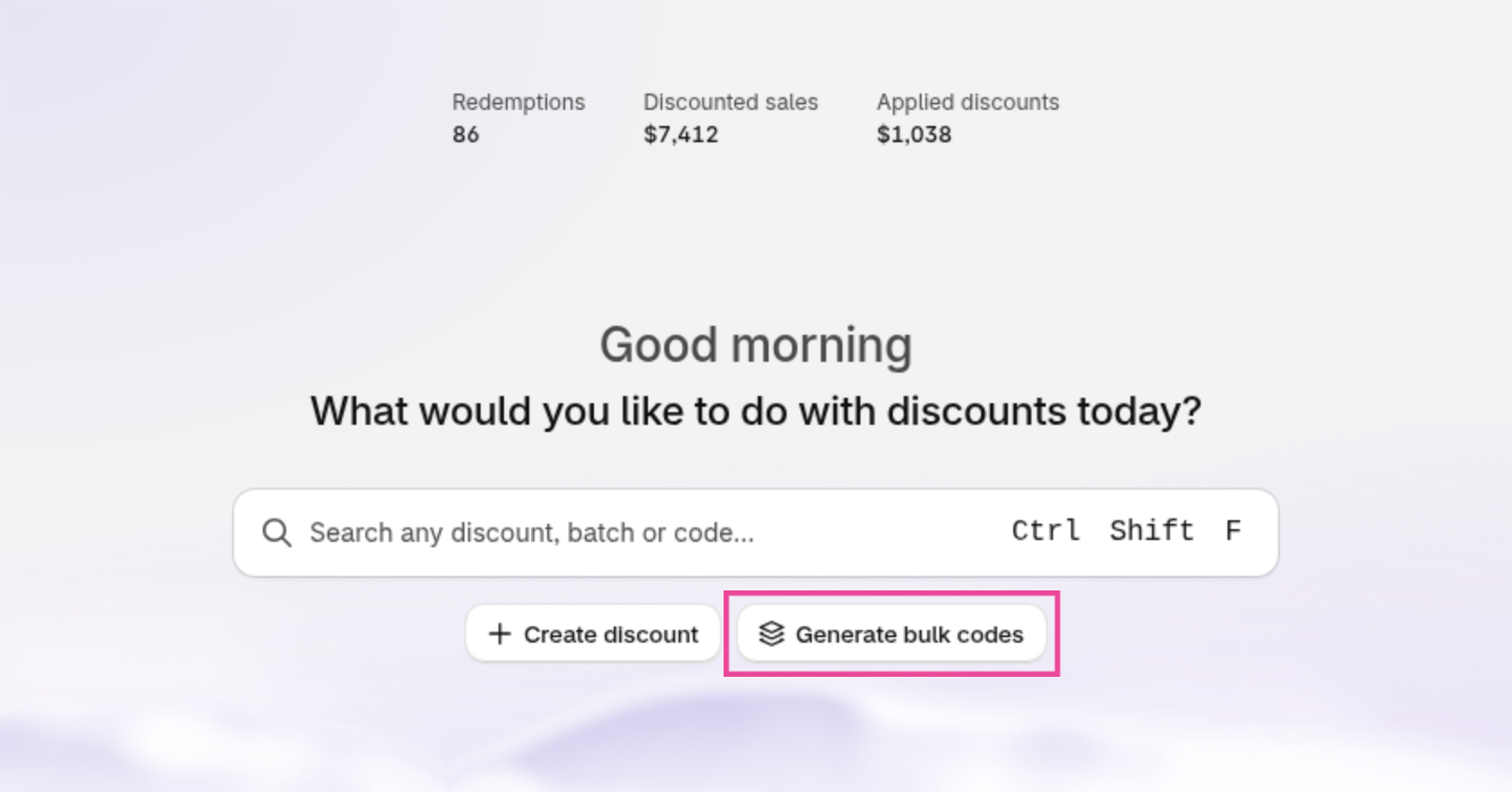
An example of Home, where Generate bulk codes starts a new batch.
Choose a discount
In Step 1 · Discount, search for an existing code discount, or click Create new discount to set one up. The discount decides what every code in the batch gives, such as 10% off, and who can use it.
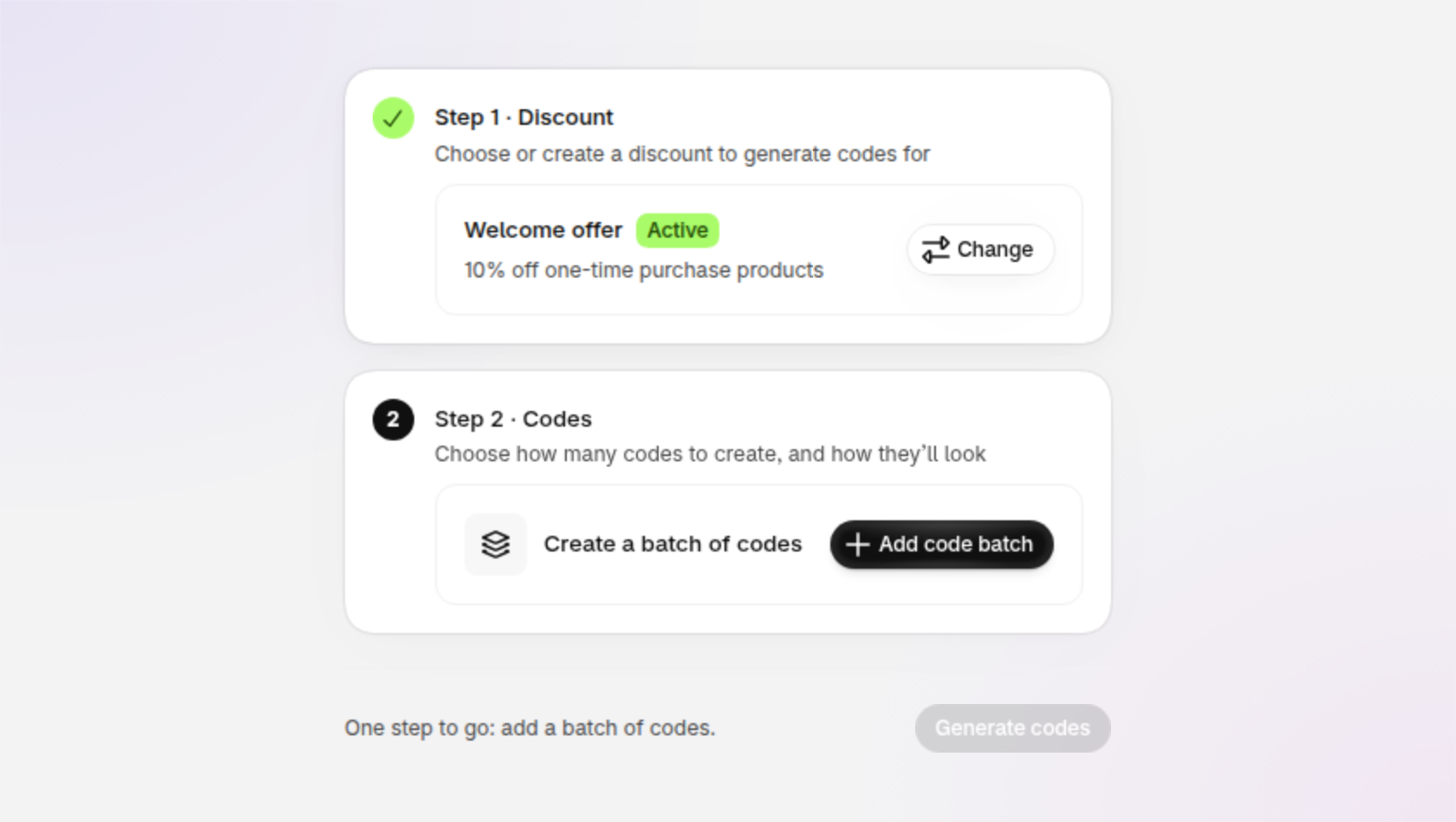
An example of Create discount code batches, with a discount chosen and no batches added yet.
Add a code batch
In Step 2 · Codes, click Add code batch. The batch designer opens.
Optionally, give the batch a Batch title, such as "October affiliate campaign". A title makes batches easier to tell apart later.
Choose how to create codes
Under Method, choose Generate codes to have Discount Magic create new random codes. The rest of these steps follow this method.
If you already have a list of codes, you can paste or upload your own codes with Paste codes or Upload CSV instead. Those methods skip the code format and ask for your list of codes.
Pro plan: you can use all three methods: Generate codes, Paste codes and Upload CSV. On the free plan, you can only use Generate codes.
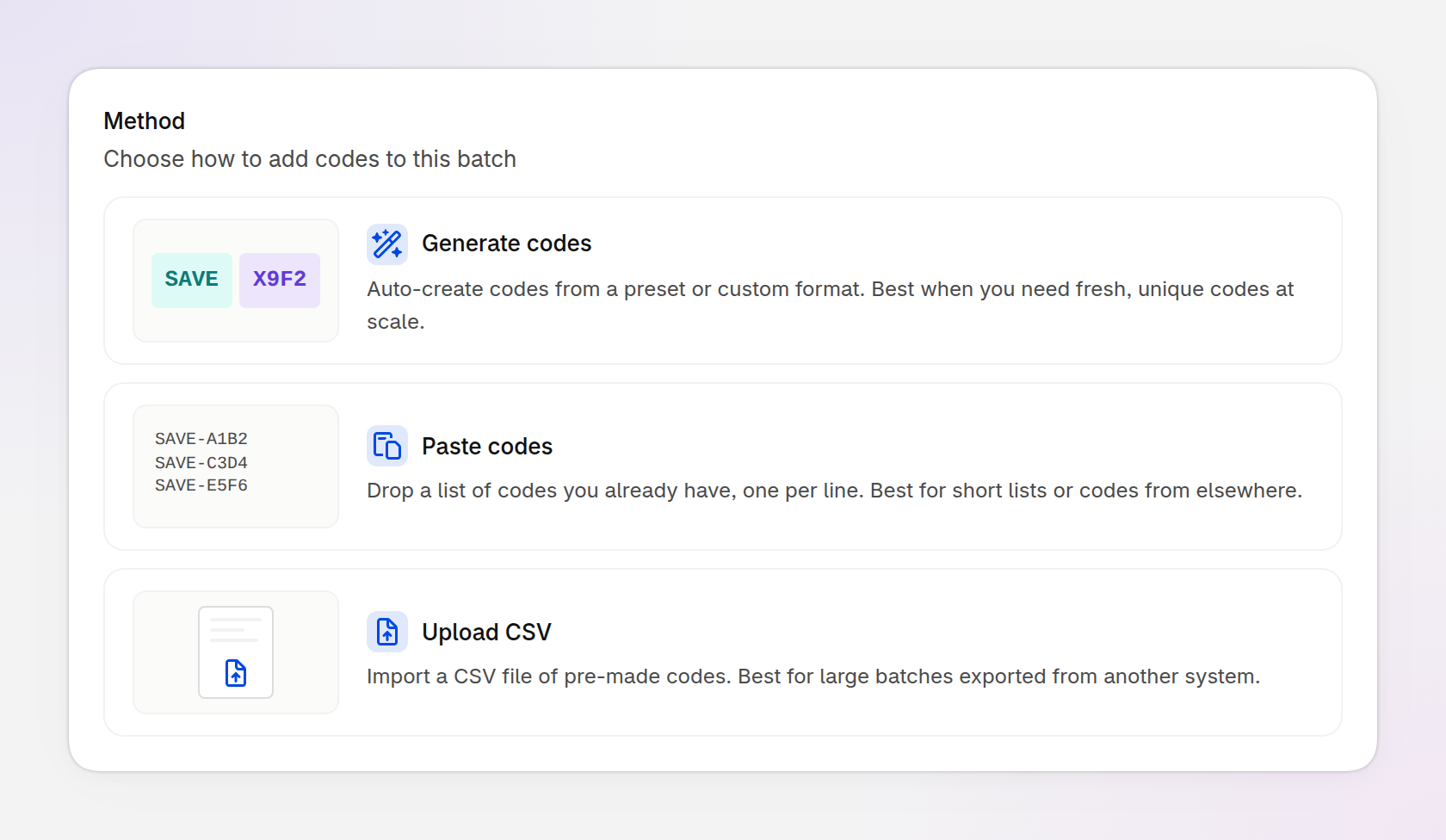
An example of the Method section, where you choose how to create the codes.
Pick a format
Under Code format, choose a preset such as Short alphanumeric. You can then change the format under Customise format, and Sample codes shows how your codes will look. Presets with custom text, such as Static prefix, and the Ticket-style and Custom presets are part of the Pro plan.
Set the number of codes
Enter the Number of codes, up to 1,000,000 at a time. To put more than that in one batch, add more codes to it afterward. Estimated time to save codes shows roughly how long Shopify will take to create them.
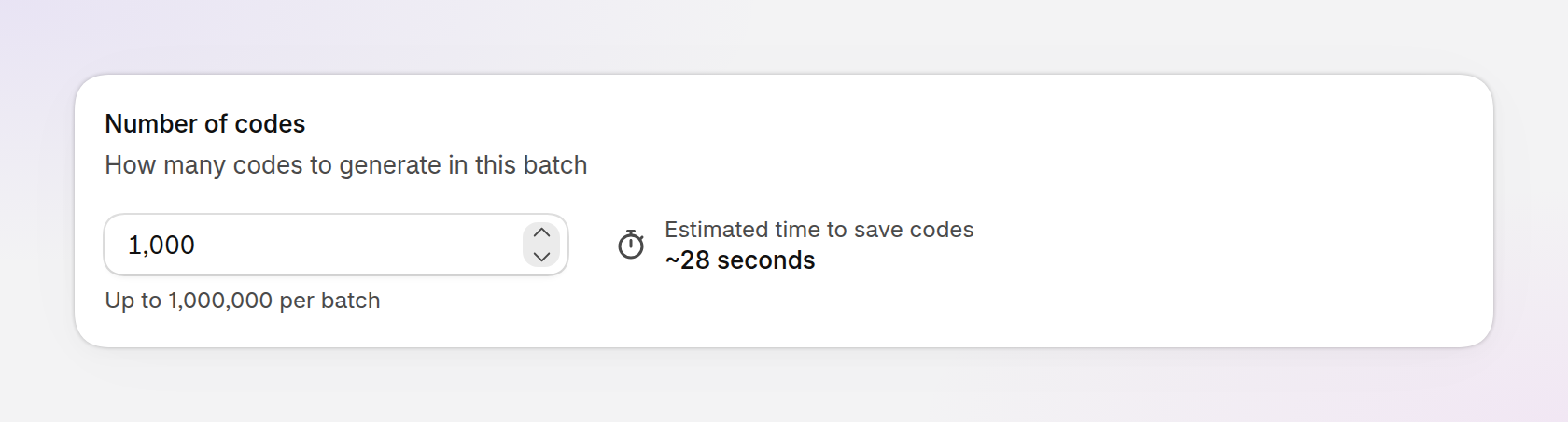
An example of the Number of codes section, with the estimated time to create the codes.
Generate only as many codes as you expect to need. Every code counts toward Shopify's limit of 20,000,000 unique discount codes per store, and you can add more codes to a batch later.
Nothing is saved until you click the Generate button. If you leave before then, the batches you designed aren't kept.
How to add a batch from a discount's page
Use this when the discount already exists and you want to add more codes to it.
Open the discount
In Discount Magic, go to Discounts and click the title of the discount you want to add codes to.
Click Add batch
In the Discount code batches section, click Add batch. The Add discount code batch window opens. You can also find Add batch under More actions.
On a discount that has a single code, Add batch is next to Need many codes?.
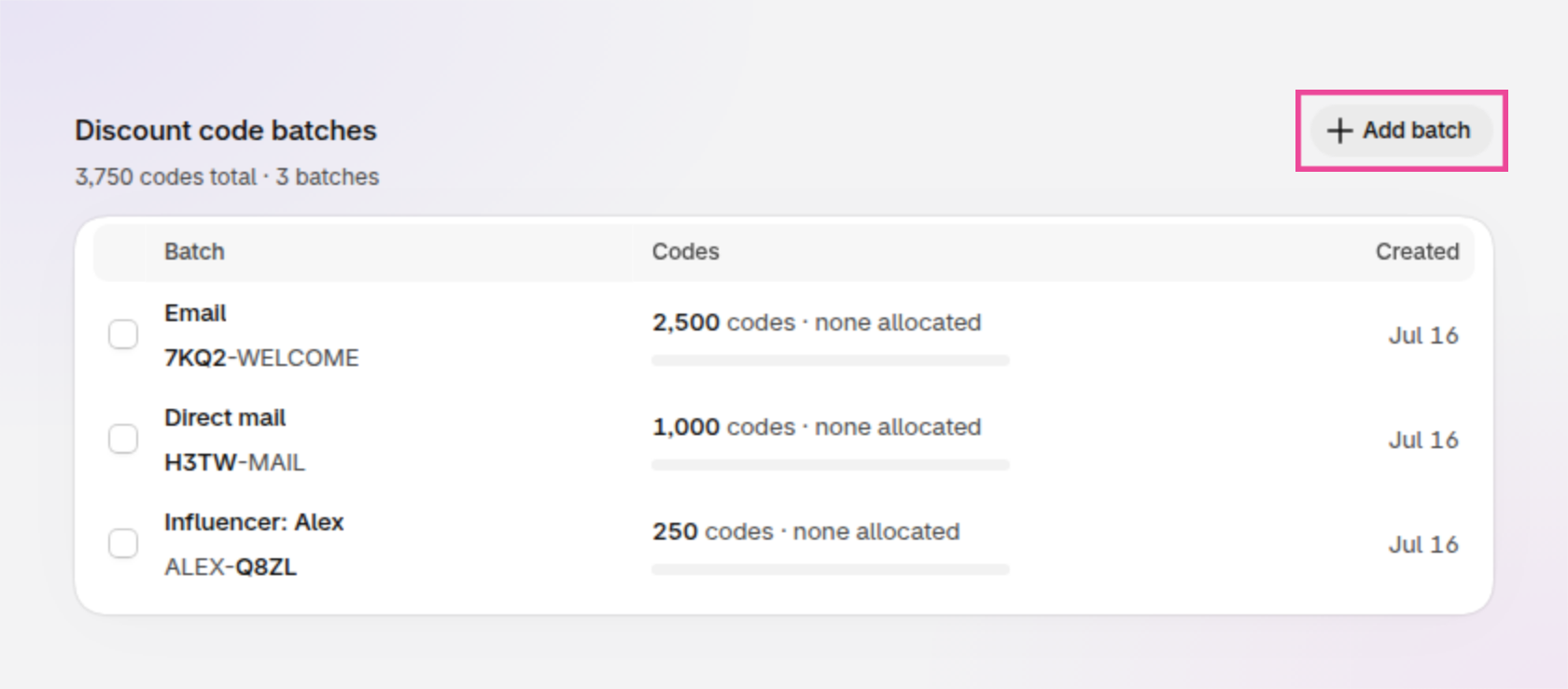
An example of a discount's page, where Add batch adds a batch to that discount.
Design the batch
Choose the Method, the Code format and the Number of codes, in the same way as steps 3 to 5 of How to create a batch from Home.
For a discount with the Draft status, and for discount types that Discount Magic can't edit yet, such as free shipping and Buy X get Y, Add batch opens Create discount code batches with the discount already chosen. Continue from step 2 of How to create a batch from Home.
How to add batches when you create or edit a discount
Use this to set up a discount and its codes in one step, or to add a batch while you are changing a discount's settings.
Open the discount form
In Discount Magic, go to Discounts and click Create discount, or click a discount's title and then Edit. Under Method, Discount code must be selected.
Choose Multiple codes
Under Code type, choose Multiple codes. On a discount that already has batches, this section is called Discount codes and lists them.
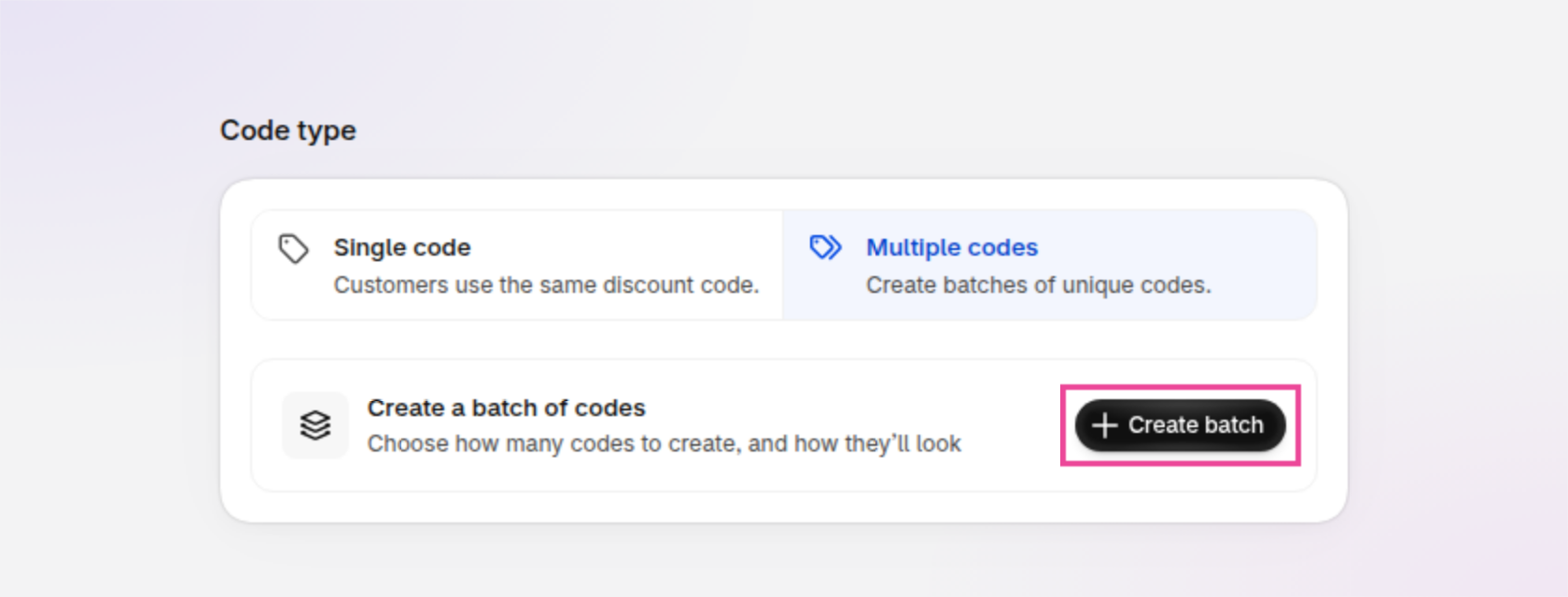
An example of the discount form, where choosing Multiple codes shows the Create batch button.
Create a batch
Click Create batch, or Add another batch if the discount already has one. Choose the Method, the Code format and the Number of codes, in the same way as steps 3 to 5 of How to create a batch from Home, then click Save batch.
The batches you add on the discount form aren't created until you save the discount. If you leave without saving, they aren't kept.
How to choose a code format
A code format is made of parts: random characters that make each code unique and, on the Pro plan, custom text, such as SAVE- at the start or -XMAS at the end. Turn on Exclude confusing characters to leave out look-alikes such as O and 0, which helps when codes are printed or read aloud.
Make the random part long enough: longer codes are harder to guess and leave room for more codes later. If a format is too short, Discount Magic shows Consider a longer code format or Not enough possible codes. It also checks each generated code against the codes already in your store, so it doesn't create a code your store already has. For every option, see Discount code formats.
How long code generation takes
Shopify creates the codes for a discount in groups of up to 250, one group after another, at about 50 codes per second. That means about 4 minutes for 10,000 codes and about 5 and a half hours for 1,000,000.
You don't need to keep the page open. Codes keep being created in the background.
You can add more batches without waiting for the first to finish. Batches for the same discount are created one after another, so Discount Magic queues the rest (shown as Queued, or Pending on the discount's page) and starts each one automatically. For more sizes, see How long does code generation take?.
When generated codes are ready to use
Each code is ready to use as soon as Shopify has created it, so customers can use the first codes before the whole batch finishes. Whether a code works at checkout still depends on the discount's settings. For example, a discount set to start in the future won't work until its start date. When code generation finishes, the batch shows as Active and Where next? offers View codes, Export CSV and, if you've connected Klaviyo, Sync to Klaviyo (Pro plan).
If code creation stops partway through, the batch shows as Stalled or Failed. Codes already created keep working, and retrying creates the rest without duplicates. See Batch statuses explained.
Frequently asked questions
How many discount codes can I create in Shopify?
Shopify allows up to 20,000,000 unique discount codes per store. No app or custom solution, including Discount Magic, can bypass or raise this limit. If your store reaches it, you can delete codes you no longer need to make room for new ones.
Discount Magic generates up to 1,000,000 codes at a time. You can generate again to add more codes to the same batch, and add as many batches as you need.
Can I make each code single-use?
Yes. In Discount Magic, go to Discounts, click the discount's title, click Edit and set Maximum discount uses to a total of 1. On a discount with multiple codes, that limit applies to each code separately, so every code in the batch can be used once.
Can I import my own list of discount codes?
Yes, on the Pro plan. In Discount Magic's batch designer, under Method, choose Paste codes to paste a list, or Upload CSV to import a file. Repeated lines are ignored. If some codes already exist in your store, Discount Magic lists them, and Remove conflicting codes takes them out of the batch.
How do I download the codes?
In Discount Magic, go to Discounts and click the discount's title. In the Discount code batches section, click the batch, then click Export. You'll get a CSV file of every code in the batch.
Can I add a prefix or suffix to my discount codes?
Yes, on the Pro plan. Choose a format such as Static prefix, or insert a Prefix or Suffix part under Customise format, for example SAVE- at the start or -XMAS at the end.
Can I add more codes to a batch later?
Yes, once the batch has finished generating and shows as Active or Partially active. You can't add codes to a batch while it's still being created, but you can add another batch to the discount without waiting. In Discount Magic, go to Discounts, click the discount's title, click the batch in the Discount code batches section, then click Add codes. How you add them depends on how the batch was made:
A generated batch: Discount Magic generates more codes in the batch's existing format.
A batch made from pasted or uploaded codes (Pro plan): you paste another list of codes.
You can add up to 10,000 codes at a time. To use a different method or code format, add a new batch to the discount instead.
Related articles
Was this helpful?
Still need help? Ask the team