Campaigns
Campaigns in Discount Magic group the discounts for one marketing event, such as a seasonal sale, a product launch or an always-on welcome offer.
Last updated 5 days ago
A campaign is a marketing event: a summer sale, a Black Friday weekend, a product launch or an always-on welcome offer. In Discount Magic, a campaign can hold one or more related discounts, so the discounts for each event are grouped and easy to filter.
You keep your campaigns in Discount Magic's Settings, ready to choose wherever the app asks for one. (Note: campaigns in Discount Magic aren't linked to campaigns in Shopify Marketing.)
Which plans include campaigns
Ideas for campaigns
Seasonal sales: Black Friday Cyber Monday 2026, Summer sale 2026, Spring clearance.
Product launches: a new range or a limited edition, with a discount for early customers.
Always-on offers: a welcome offer for new subscribers, or a win-back offer for customers who haven't ordered in a while.
One-off events: a store anniversary, a pop-up shop or a warehouse clearance.
Name campaigns the way your team talks about them, and add the year to recurring campaigns, so this year's Black Friday stays separate from last year's.
Where to find your campaigns
In Discount Magic, go to Settings and click Campaigns.
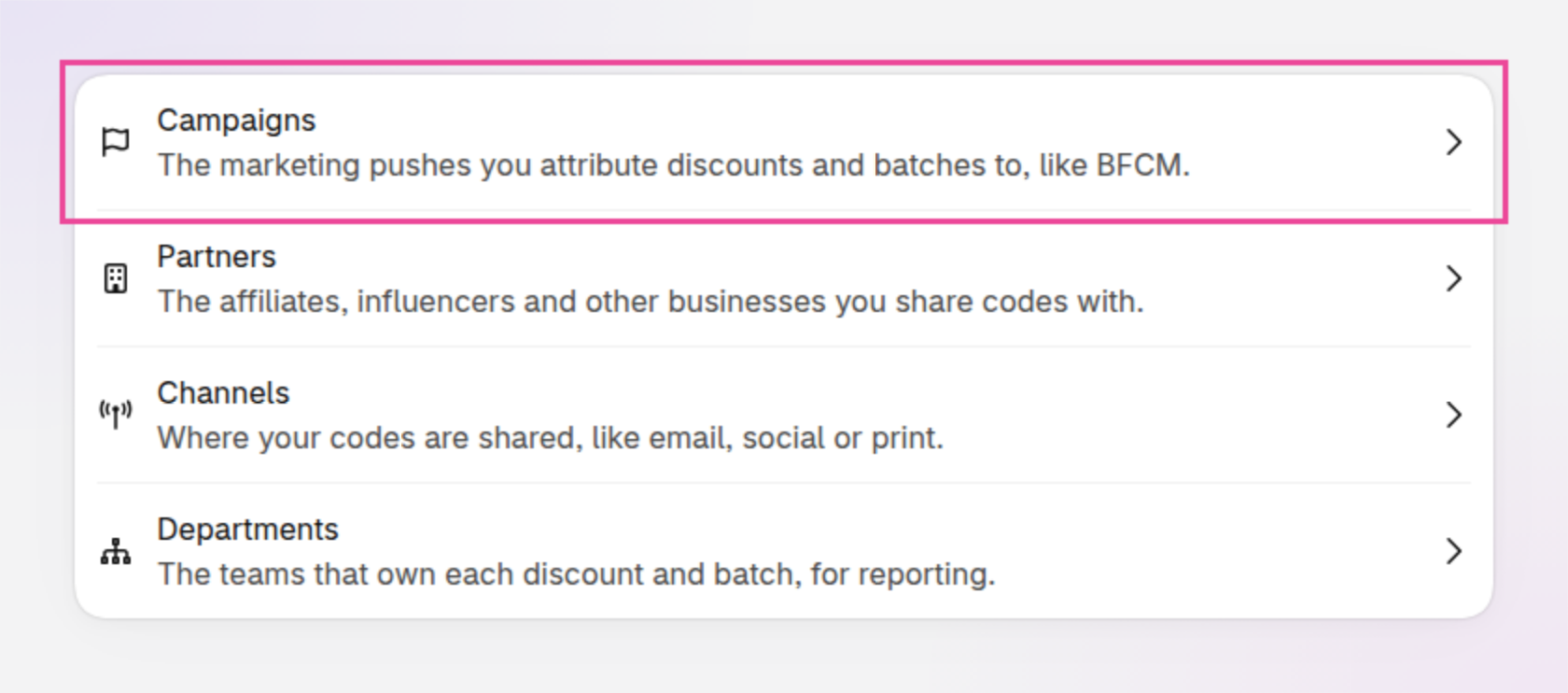
An example of Settings, where Campaigns opens your campaigns.
Campaigns when you install Discount Magic
Discount Magic doesn't add any campaigns for you, because every store's marketing calendar is different. Your list of campaigns starts empty: add campaigns on the Campaigns page, or create one the first time you choose a campaign for a discount or batch.
How to add a campaign
Click Add campaign
In Discount Magic, go to Settings > Campaigns and click Add campaign.
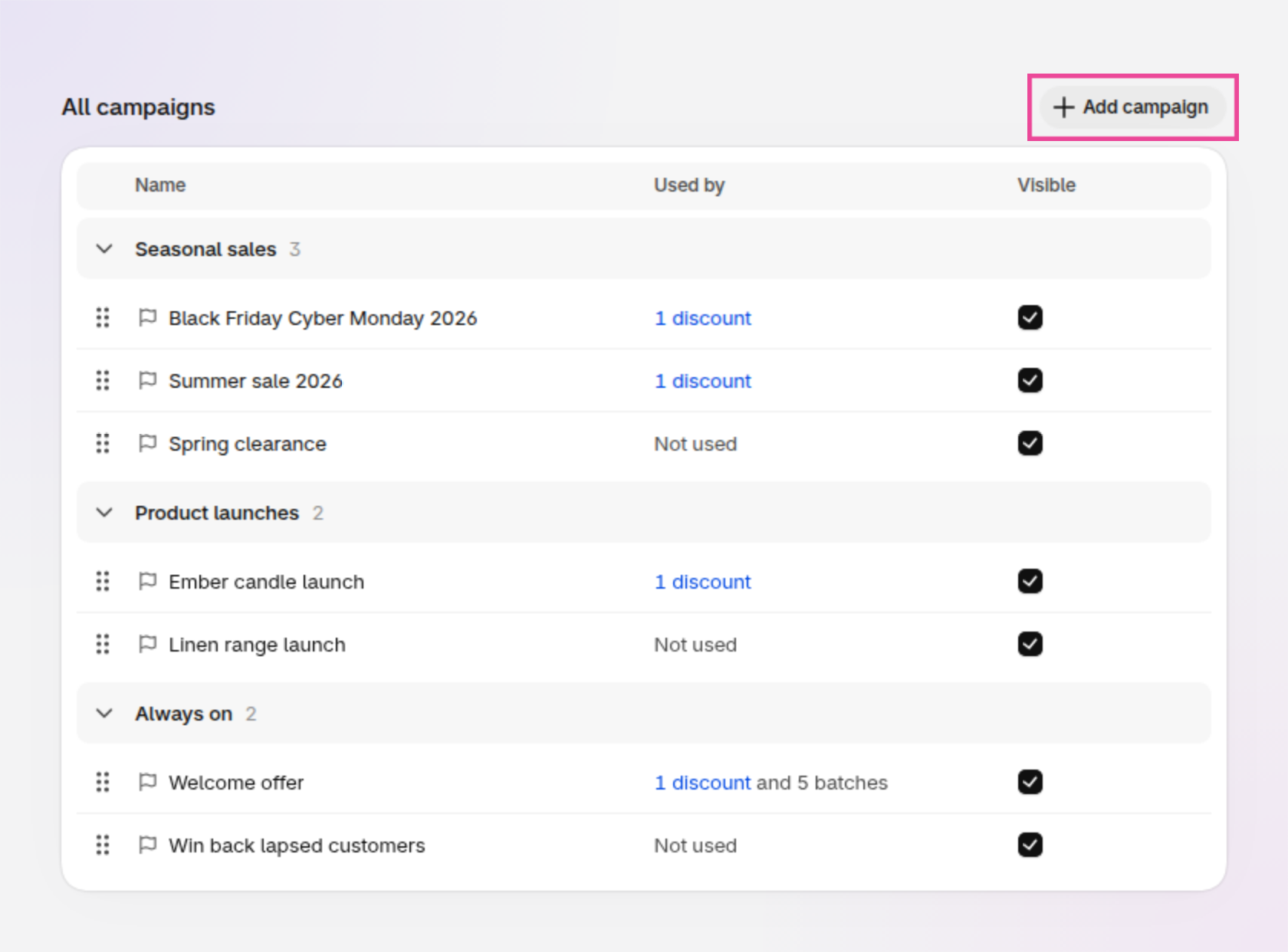
An example of the Campaigns page, with Add campaign outlined.
Choose a group
Optionally, choose a Group, or type a new group's name and choose Create. See How to group your campaigns.
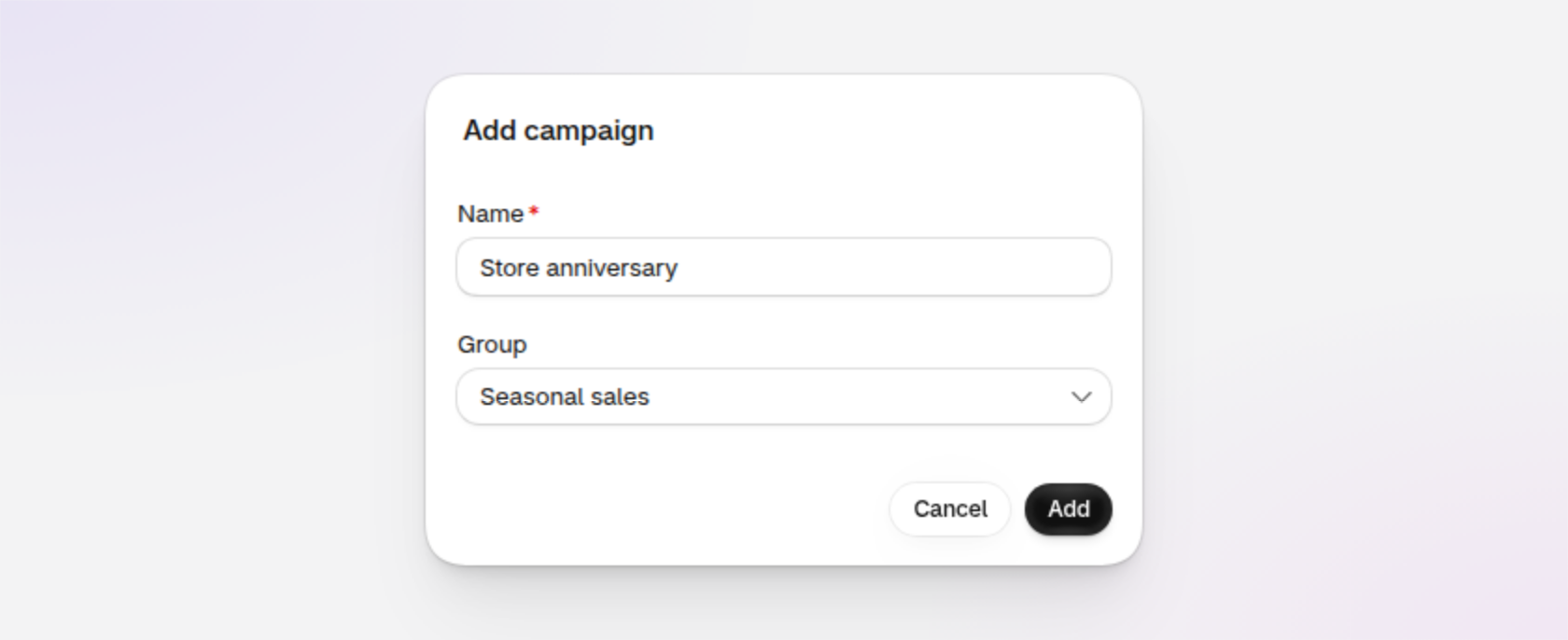
You can also create a campaign without leaving what you're doing: wherever you choose a campaign, type a new name and choose Create.
How to group your campaigns
Groups keep a long list easy to scan, such as Seasonal sales, Product launches and Always on. A campaign can be in one group, or in none.
On the Campaigns page, each group has its own heading with a count. Click a group's name to collapse or expand it. Campaigns without a group are listed last, under No group.
Wherever you choose a campaign, and in the Campaign filter on the discounts list, campaigns are listed under their group's name.
To move a campaign to another group, click the … button at the end of the campaign's row and choose Change group…, or drag the campaign into the group.
How to change the order of your campaigns
Drag a campaign by the handle on its left, or choose Move up or Move down from its menu. Discount Magic lists your campaigns in this order wherever you choose one.
How to hide a campaign
Untick a campaign's Visible box, or choose Hide from its menu, to stop the campaign appearing in the list when you choose a campaign for a discount or batch. Discounts and batches already in the campaign keep it, so hide a campaign once it has ended to keep the list current. The Campaign filter still lists hidden campaigns, under Hidden, so you can look back at them.
To show the campaign again, tick Visible or choose Show.
How to rename or delete a campaign
To open a campaign's menu, right-click it or click the … button at the end of its row. Choose Rename… to change its name everywhere it's used.
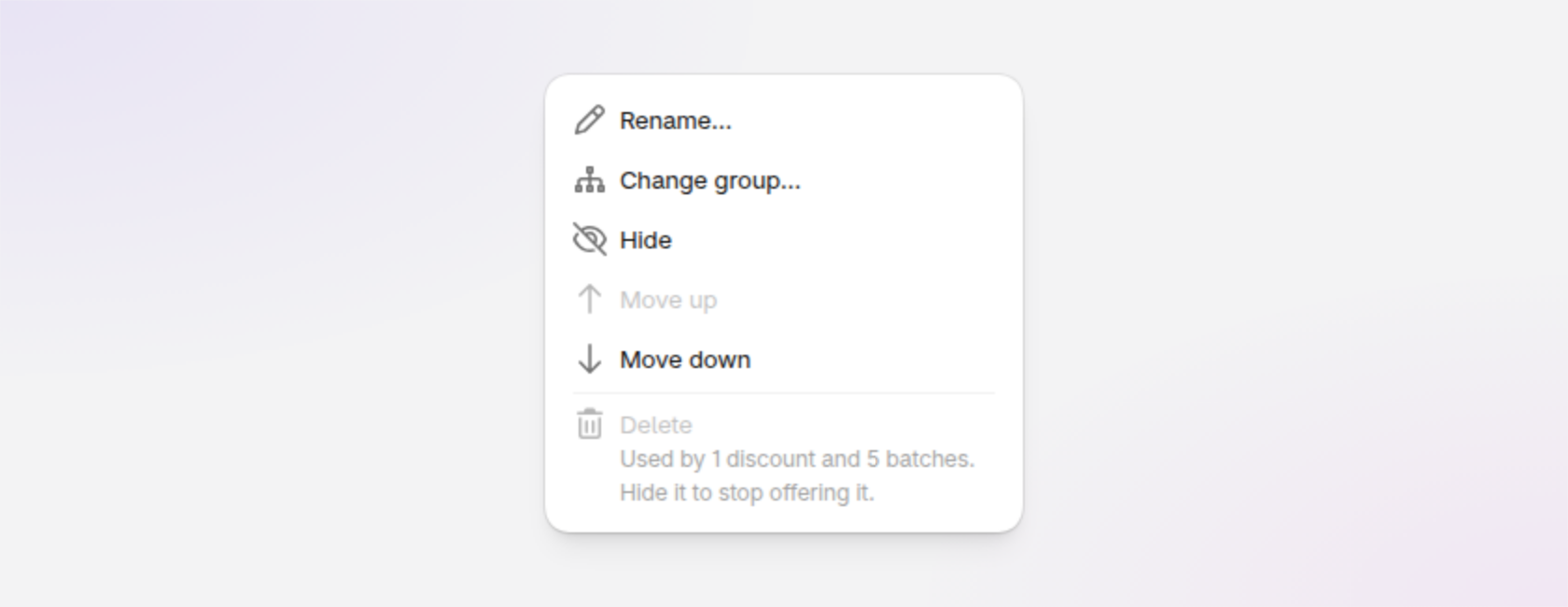
An example of a campaign's actions menu.
The Used by column shows how many discounts and batches are in each campaign, such as 1 discount and 5 batches. Click the number of discounts to see them.
You can delete a campaign that no discount or batch uses: choose Delete from its menu and confirm. While a campaign is in use, Delete is unavailable; hide the campaign instead.
A deleted campaign is removed for good. If you might want it again, hide it instead.
How to attribute discounts and batches to a campaign
On the Pro plan, you can attribute discounts and batches of codes to a campaign. Attributing to a campaign organizes your discounts by the marketing event they belong to, lets you filter your lists by campaign, and shows which campaigns your sales came from.
A discount: in Discount Magic, go to Discounts and click the discount's title. In the Attribution section on the right, click Add to campaign and pick the campaign. See Discount attribution.
A batch of codes: choose the campaign when you create the batch, or change it later in the Attribution section on the batch's page. See Discount batch attribution.
You can also attribute many discounts or batches to a campaign at once, and filter the discounts list or a discount's batches by campaign.
Other places Discount Magic uses campaigns
Performance (Pro plan): break a discount's orders down by campaign. See Discount performance.
You can set up and manage campaigns on every plan.
Frequently asked questions
Are these the same as campaigns in Shopify Marketing?
No. Campaigns in Discount Magic are your own list, kept in the app. They aren't linked to Shopify's marketing campaigns.
Can a discount be in more than one campaign?
No. A discount belongs to one campaign at a time. Each of its batches of codes can be in a campaign of its own.
What happens to discounts when I hide a campaign?
Nothing changes for them. They stay in the campaign, and you can still filter by it. The campaign no longer appears in the list when you choose a campaign for a discount or batch.
Can I delete a campaign that's in use?
No. In Discount Magic, a campaign can only be deleted once no discount or batch uses it. Hide it instead, or move its discounts and batches to another campaign first.
Related articles
Was this helpful?
Still need help? Ask the team