Channels
Channels in Discount Magic record how you distribute each discount and batch of codes, such as email, social or print, so you can compare performance.
Last updated 5 days ago
A channel is where customers see or receive your discount codes, and how you promote them: an email campaign, a text message, a social post, a packaging insert or a voucher website. Attributing discounts and batches of codes to a channel tells you how each one reaches customers, so you can compare channel performance.
You keep your channels in Discount Magic's Settings, ready to use when you attribute discounts and batches of codes.
Which plans include channels
Where to find your channels
In Discount Magic, go to Settings and click Channels.
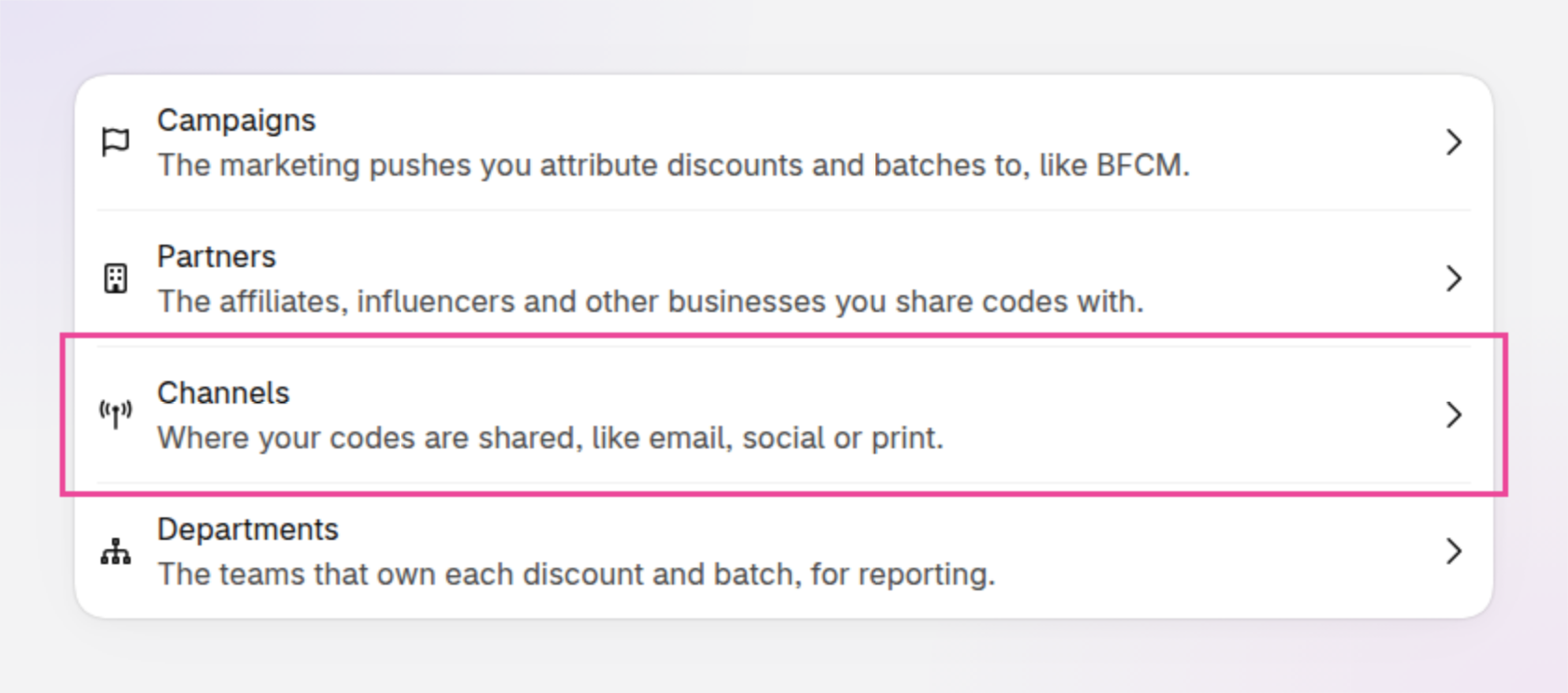
An example of Settings, where Channels opens your channels.
Channels when you install Discount Magic
When you install Discount Magic, it adds a set of common channels for you, in groups, so you can start straight away. Each one is marked Default on the Channels page. You can rename, regroup, hide or delete them like channels of your own.
Discount Magic adds the default channels once. A default channel you rename, move or delete stays that way, and a deleted one doesn't come back.
How to add a channel
Click Add channel
On the Channels page, click Add channel.
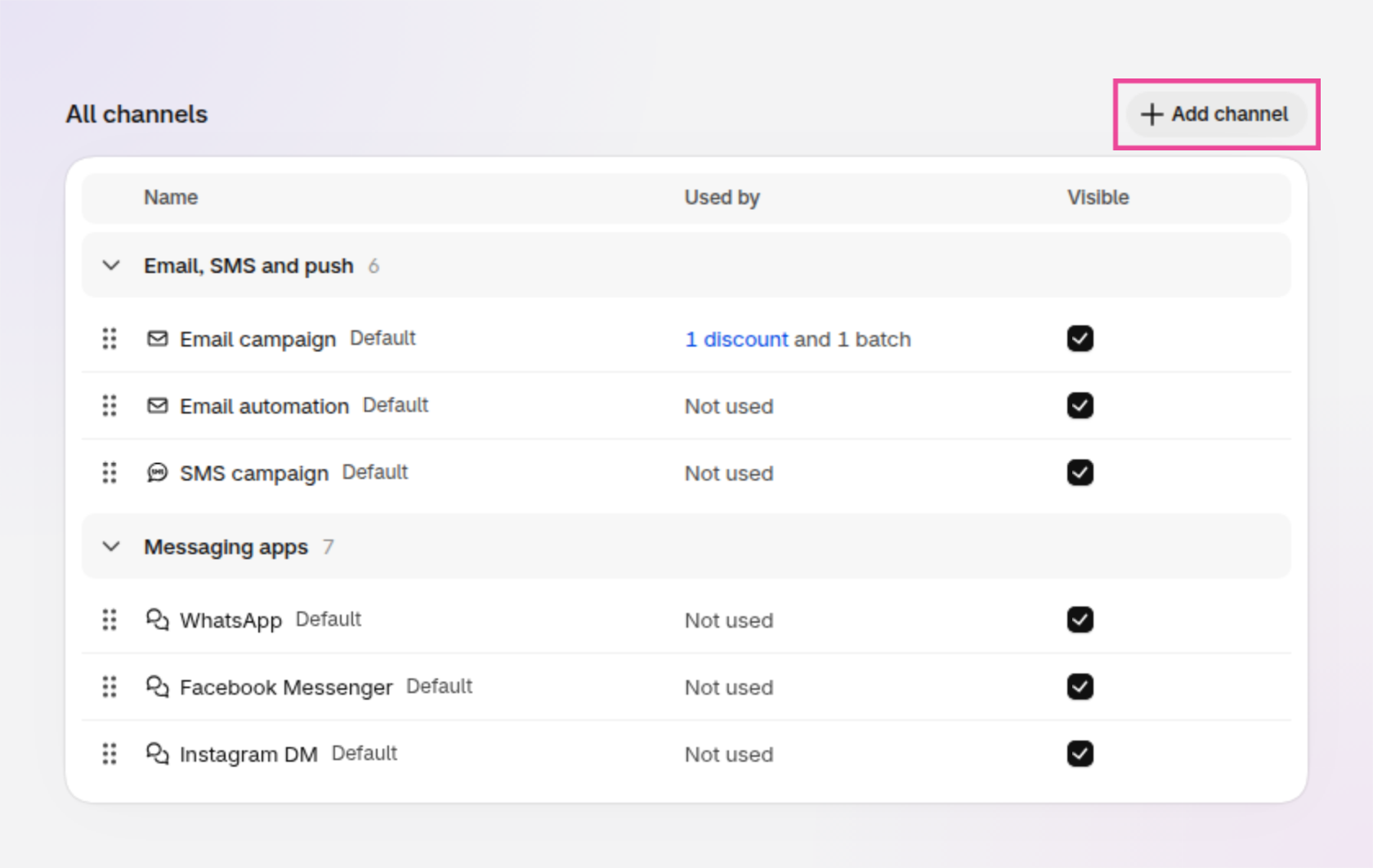
An example of the Channels page, with Add channel outlined. The first channels of two groups are shown.
Choose a group
Optionally, choose a Group, such as Paid advertising, or type a new group's name and choose Create.
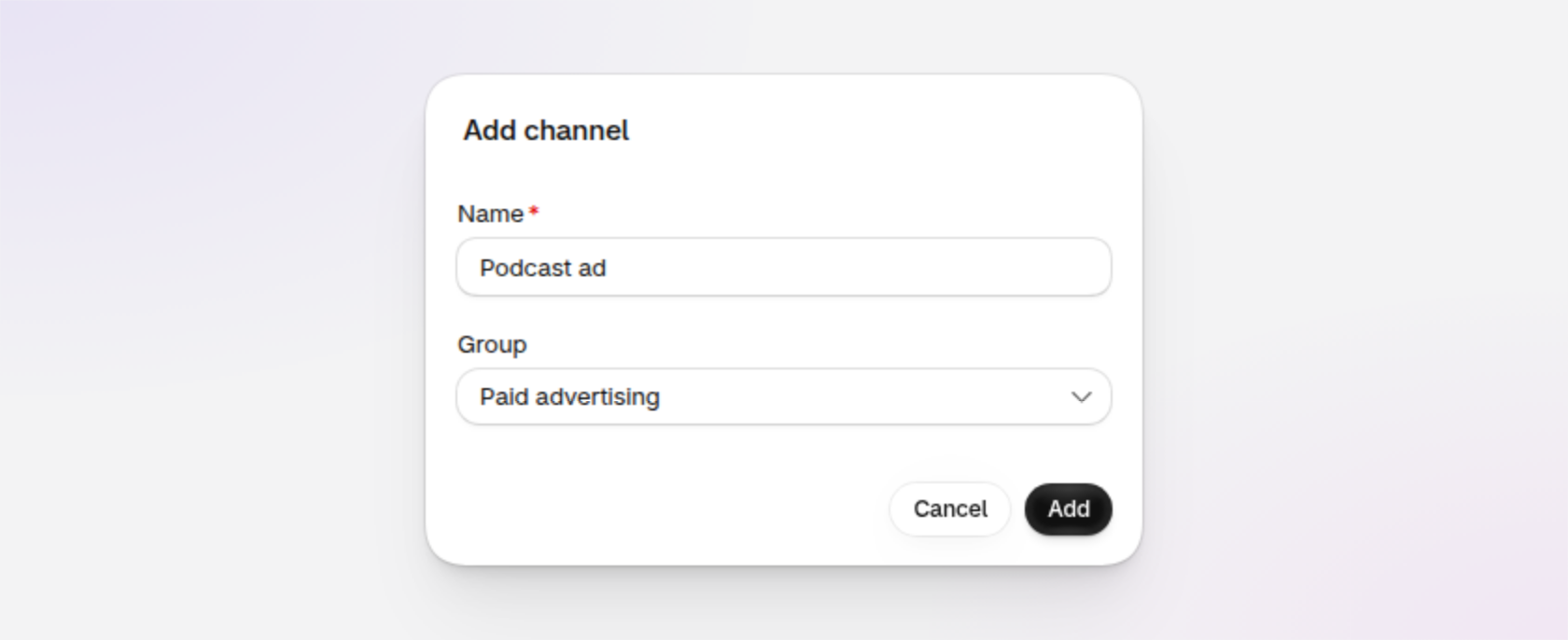
You can also create a channel while you attribute a discount or batch: in the channel list, type a new name and choose Create.
How channel groups work
A group gathers similar channels, such as every kind of paid advertising. A channel can be in one group, or in none. To move a channel to another group, choose Change group… from its menu, or drag it into the group.
On the Channels page
Each group has its own heading with a count. Click a group's name to collapse or expand it. Channels without a group are listed last, under No group.
When you choose a channel
When you attribute a discount or batch to a channel, and in the Channel filter, channels are listed under their group's name, so a long list stays easy to scan.
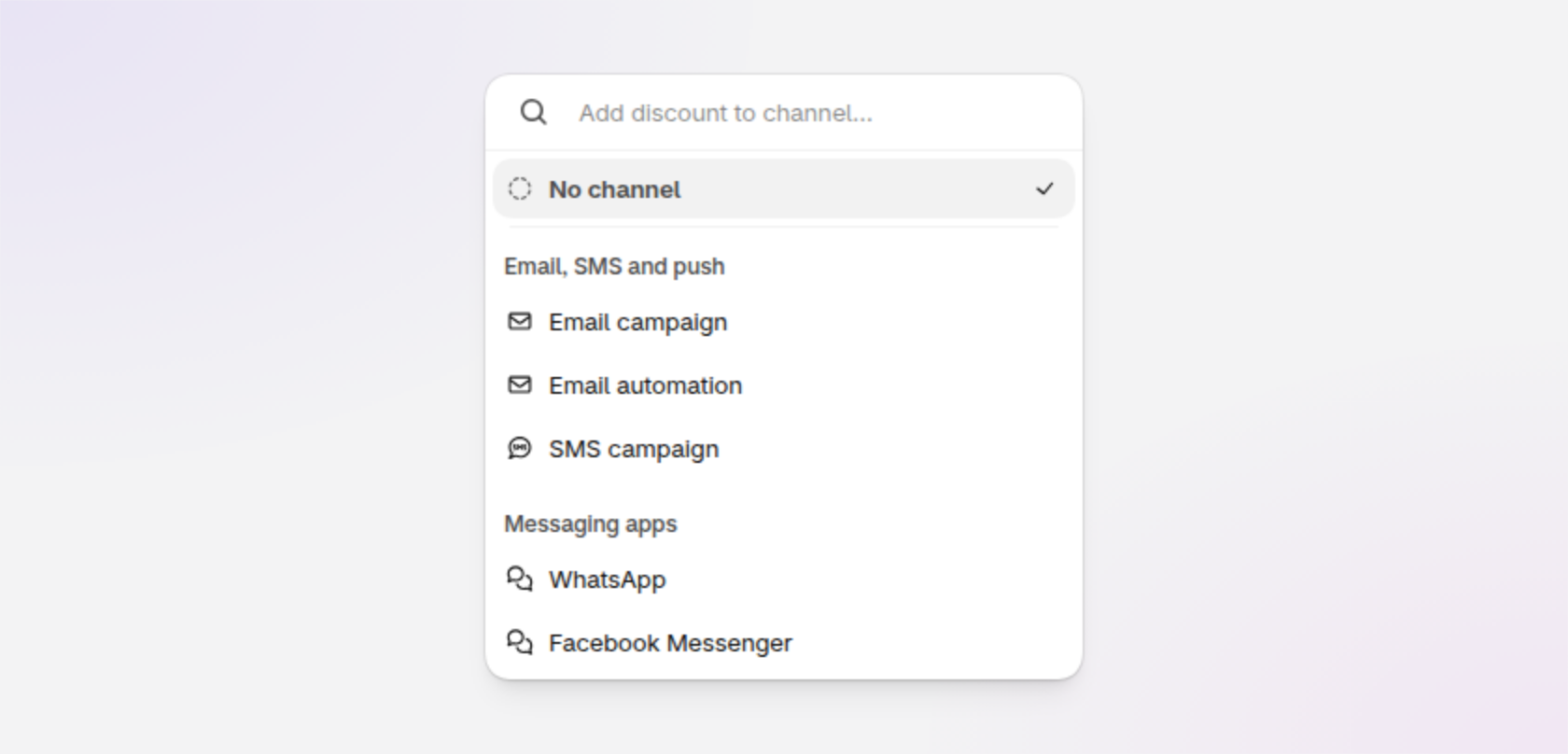
An example of the channel list, with channels under their groups.
In a discount's batches
On a discount's page, the Discount code batches section groups the batches by the group their channel is in, so batches on email channels, for example, are listed together. A batch whose channel has no group gets a heading of its own, named after the channel, and batches with no channel come last.
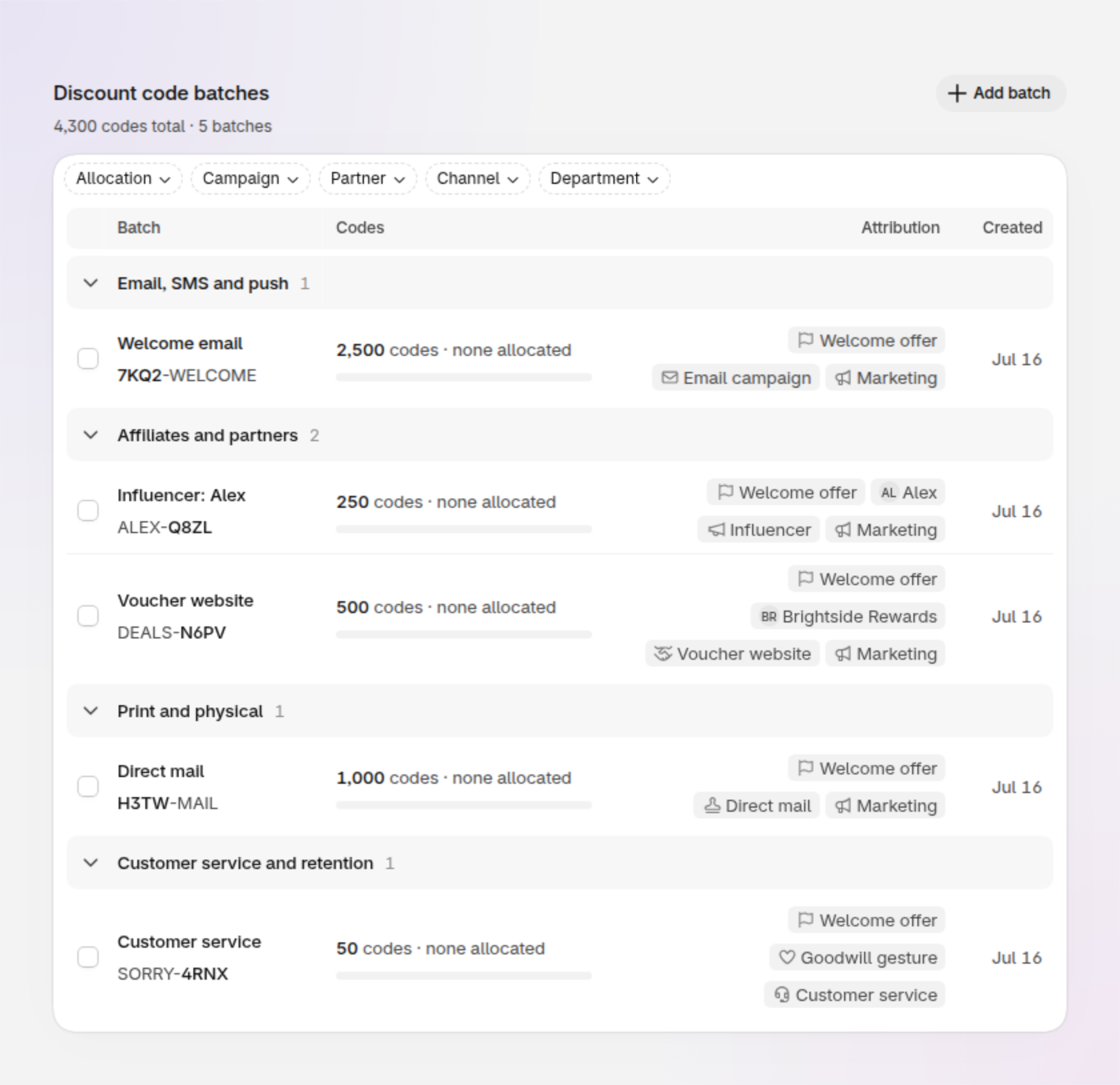
An example of a discount's batches, grouped by the group each batch's channel belongs to.
How to change the order of your channels
On the Channels page, drag a channel by the handle on its left, or choose Move up or Move down from its menu. Discount Magic lists your channels in this order across the app, such as when you attribute a discount or batch to a channel.
How to hide a channel
On the Channels page, untick a channel's Visible box, or choose Hide from its menu, so it no longer appears when you attribute discounts and batches. Hide the channels your store doesn't use to keep the list short. Discounts and batches already on the channel keep it, and the Channel filter still lists it under Hidden.
To show a hidden channel again, tick Visible or choose Show.
How to rename or delete a channel
To open a channel's menu on the Channels page, right-click it or click the … button at the end of its row. Choose Rename… to change its name everywhere it's used.

An example of a channel's actions menu.
The Used by column shows how many discounts and batches are on each channel. Click the number of discounts to see them.
You can delete a channel that no discount or batch uses: choose Delete from its menu and confirm. While a channel is in use, Delete is unavailable; hide the channel instead.
A deleted channel is removed for good, including a default one. If you might want it again, hide it instead.
How to attribute discounts and batches to a channel
On the Pro plan, you can attribute discounts and batches of codes to a channel. Attributing to a channel shows how each discount reaches customers, lets you filter your lists by channel, groups a discount's batches by channel, and breaks down each discount's orders and revenue by channel.
A discount: in Discount Magic, go to Discounts and click the discount's title. In the Attribution section on the right, click Add to channel and pick the channel. See Discount attribution.
A batch of codes: choose the channel when you create the batch, or change it later: in Discount Magic, go to Discounts, click the discount's title, click the batch in the Discount code batches section, and use the Attribution section on the right of the batch's page. See Discount batch attribution.
You can also attribute many discounts or batches to a channel at once, and filter the discounts list or a discount's batches by channel.
Other places Discount Magic uses channels
Performance (Pro plan): break a discount's orders down by channel. See Discount performance.
You can set up and manage channels on every plan.
Frequently asked questions
Can I remove the default channels?
Yes. Hide the ones you don't use, or delete any that no discount or batch uses. Discount Magic doesn't add them back.
Can a discount have more than one channel?
No. A discount has one channel at a time. To share one offer through several channels, give it a batch of codes for each, each with its own channel.
Is a channel the same as a Shopify sales channel?
No. Channels in Discount Magic record where your codes are distributed, such as an email or a voucher website. They aren't linked to the sales channels in your Shopify admin.
Related articles
Was this helpful?
Still need help? Ask the team