Discount code allocation
Allocate unique discount codes in Discount Magic to a customer, partner or custom recipient to track each code's recipient and see which are unallocated.
Last updated 5 days ago
Discount code allocation lets you allocate unique discount codes in Discount Magic to a customer, a partner or a custom recipient. You then have a record of each code's recipient, can see which codes are still unallocated, and can trace a leaked code back to its recipient.
Allocation is for your records only. It does not change the code in Shopify, and it does not restrict who can redeem it at checkout.
Which plans include discount code allocation
Who you can allocate codes to
A customer in your store. For example, a goodwill code for a customer whose order arrived late, a personal code for a VIP, or a birthday code for a loyal customer. You can then see which customer received each code, and resend the same code if they lose it.
A partner, such as an affiliate, an influencer, a reseller or a loyalty platform. For example, 250 codes for an influencer to share with their followers, or a set of codes for a local business to hand out to its members. If a code leaks, for example to a coupon site, you know which partner it was allocated to. You can add a new partner by name while allocating; see Partners.
A custom recipient: any name you type in, for someone who isn't a customer or a partner. For example, prize codes for a competition or a charity raffle, codes handed out at a trade show or pop-up shop, or codes for your staff to give out in store.
How to allocate discount codes
In Discount Magic, go to Discounts and click the discount's title. In Discount code batches, click the batch.
In the Allocation section on the right of the batch's page, click Allocate codes and choose who you're allocating to: a customer, a partner or a custom recipient.
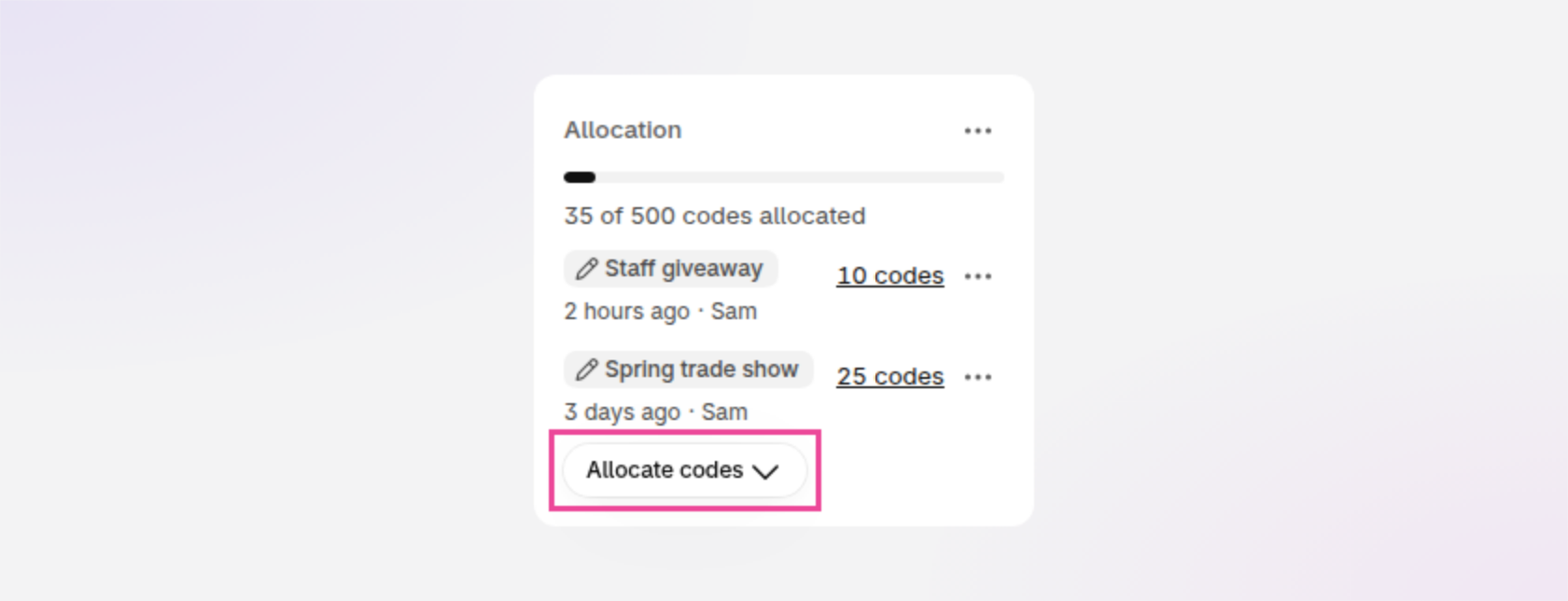
An example of the Allocation section on a batch's page, with Allocate codes outlined.
Choose the recipient, then which codes to allocate: all of the batch's unallocated codes, or only the next unallocated codes (enter how many). To allocate particular codes instead, tick them on the batch's Codes tab and click Allocate codes in the bar that appears.
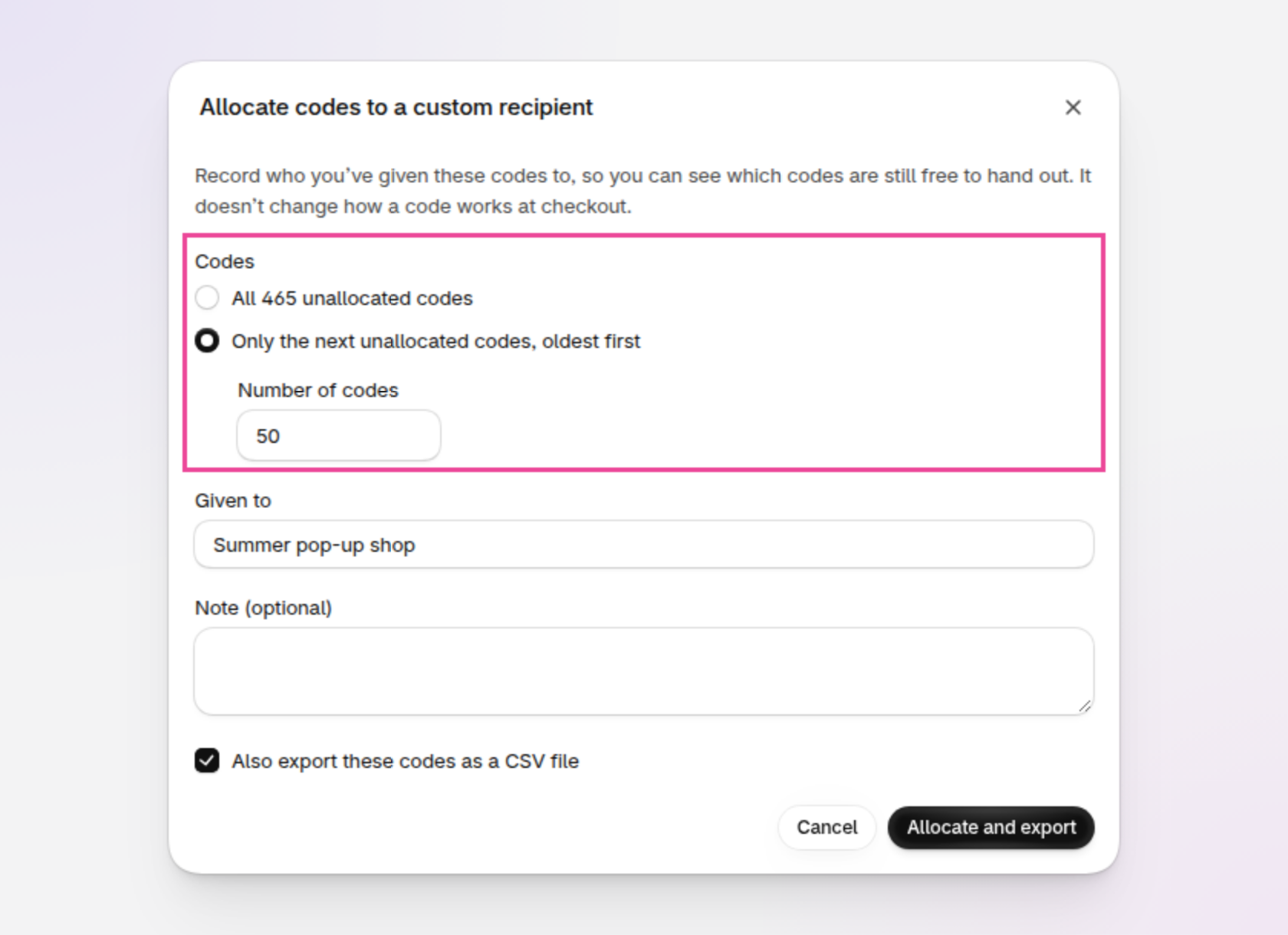
An example of the window for allocating codes to a custom recipient, with the Codes choice outlined.
Optionally add a note. If some of the codes are already allocated, choose whether to keep those allocations or replace them.
Optionally choose to export the allocated codes as a file to send to the recipient.
You can also allocate codes from the Allocation section on a discount's page. To allocate codes for several discounts at once, tick them on the Discounts page, click Edit and choose one of the Allocate codes options. Discount Magic allocates large numbers of codes in the background, so you can keep working while allocation finishes.
How to see which discount codes are allocated
The Allocation section on the right of a batch's or discount's page shows how many codes are allocated and the most recent allocations.
On a batch's Codes tab, the Given to column shows each code's recipient. Use the Allocation filter to show only allocated or only unallocated codes.
On the discounts list, the Allocation column and filter show which discounts still have unallocated codes.
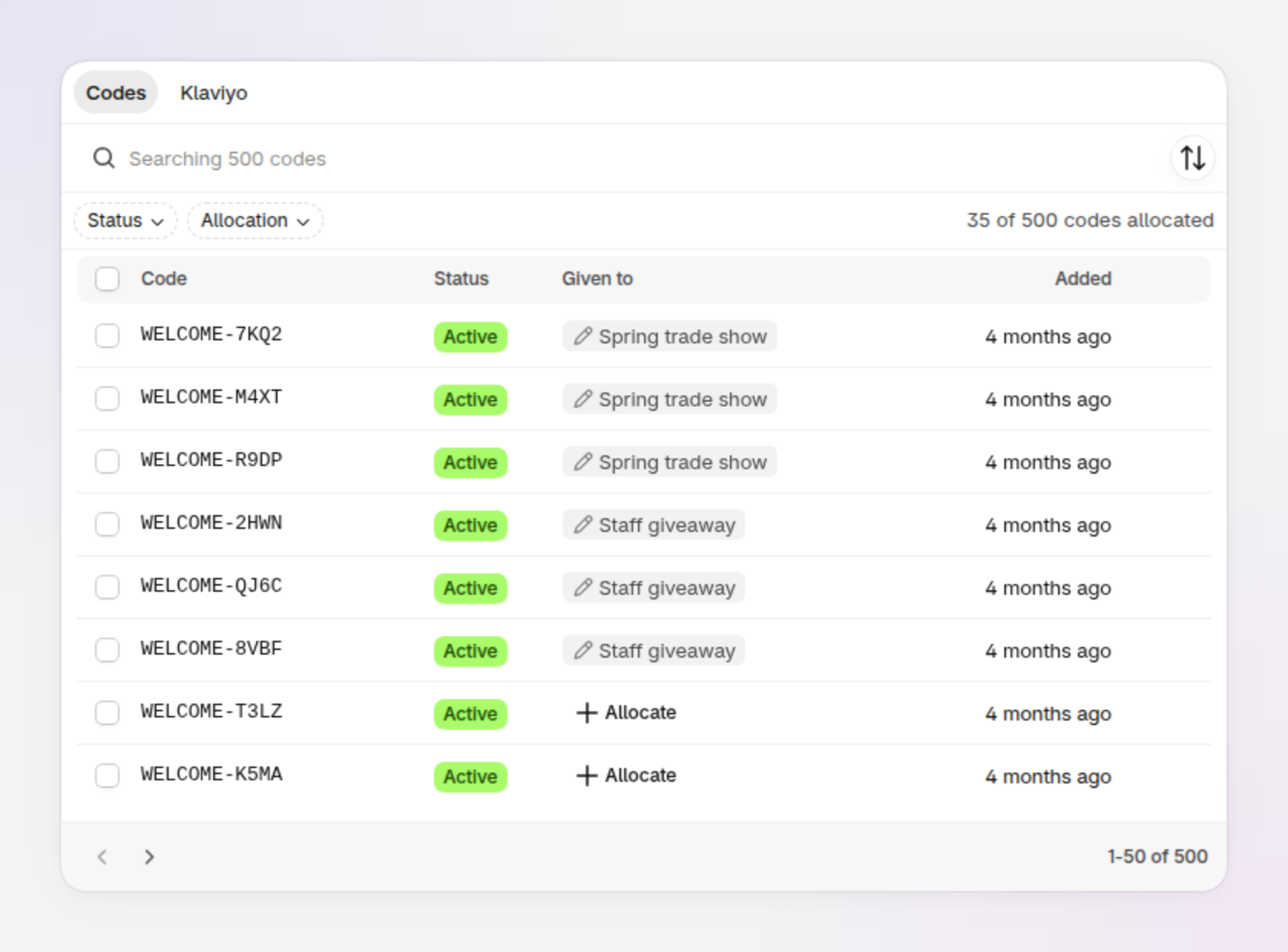
An example of a batch's Codes tab, with each code's recipient under Given to.
How to change or remove a code allocation
In the Allocation section on the right of a batch's or discount's page, click the … button next to an allocation. Choose Edit to change the allocation's recipient or note, or Deallocate to return its codes to unallocated. You can also tick codes on a batch's Codes tab and deallocate them there. Deallocating does not delete the codes.
Deleting codes, or a whole batch, removes their allocations too.
How to allocate exported discount codes
After you export a batch's unallocated codes, the batch's page asks whether you'd like to allocate the codes you just exported. Click Allocate codes in that message and choose the recipient. The message stays on the batch's page for a few days, until you allocate the codes or dismiss it.
Frequently asked questions
Does allocating a discount code stop other customers from using it?
No. In Discount Magic, allocation is for your records only. It doesn't change the code in Shopify or restrict who can redeem it at checkout. To limit who can use a discount, set its eligibility in the discount's settings.
How do I find discount codes that haven't been allocated yet?
On a batch's Codes tab, use the Allocation filter to show only unallocated codes. On the Discounts page, the Allocation column and filter show which discounts still have unallocated codes.
Does deallocating a code delete it?
No. Deallocating returns the code to unallocated, and the code keeps working in Shopify. Deleting a code, or its whole batch, removes its allocations too.
Can I allocate codes for several discounts at once?
Yes. On the Discounts page, tick the discounts, click Edit and choose one of the Allocate codes options. Discount Magic allocates large numbers of codes in the background.
Are codes sent by Klaviyo allocated?
Yes. For a batch synced to Klaviyo, codes Klaviyo has sent count as allocated, under one Klaviyo row for each linked coupon on the batch's Allocations tab. They can't be deallocated, so no code is allocated twice.
Related articles
Was this helpful?
Still need help? Ask the team