
Updates

Follow new updates and improvements to Discount Magic.

Attribute discounts to campaigns, partners, channels and departments
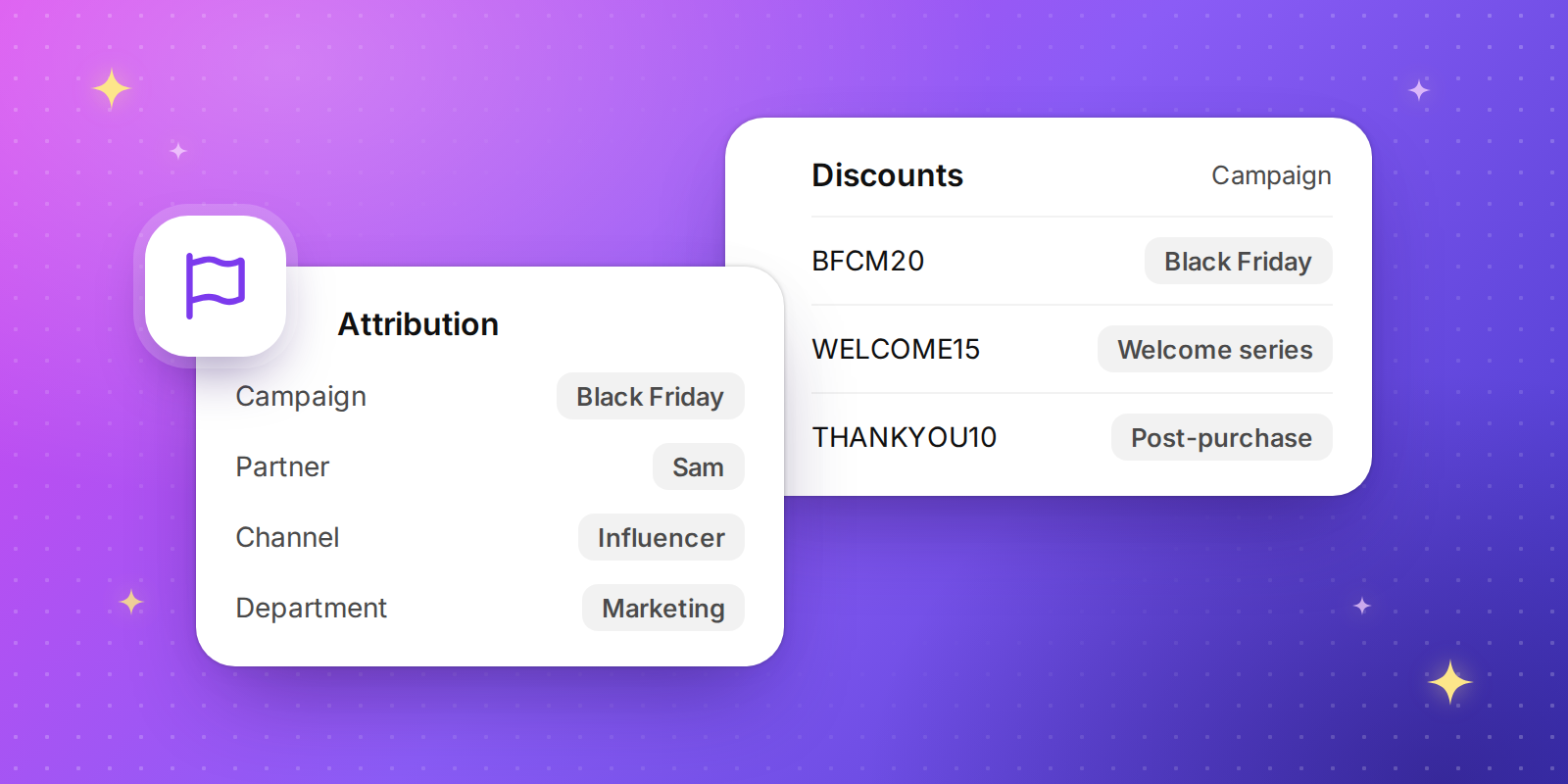
Organise your discounts and codes around the way your business runs: the campaign each one is part of, the partner who gives it out, the channel customers find it through and the department that looks after it.

Four ways to organise your discounts

Campaigns

The marketing event a discount is part of, such as a summer sale, a product launch or an always-on welcome offer. For example, group every Black Friday discount under "Black Friday 2026".

Partners

The influencer, affiliate or business that gives out or promotes your codes. For example, give each influencer their own batch of codes and see the revenue each one drives.

Channels

Where customers see or receive a code, such as an email campaign, a text message, a social post or a packaging insert. For example, compare codes printed on packaging inserts with codes sent by email.

Departments

The team in your business that looks after a discount. For example, file goodwill codes under Customer service, so the team can find every code it has issued.

Attribute discounts and batches

  • On a discount. In the Attribution section on the right of a discount's page, add it to a Campaign, Partner, Channel and Department. Type a new name to create one on the spot.
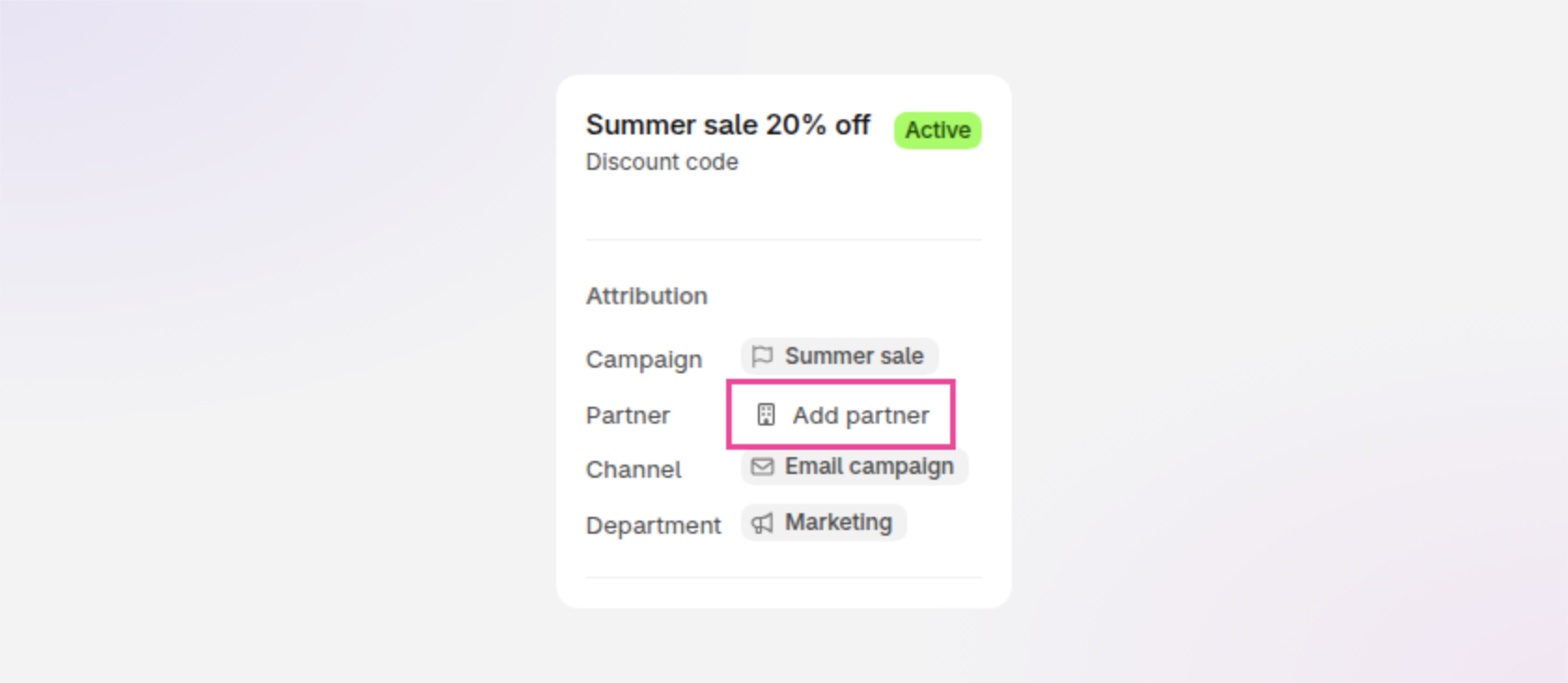
    The Attribution section on a discount's page in Discount Magic, under the discount Summer sale 20% off: Campaign Summer sale, Add partner, Channel Email campaign and Department Marketing, with Add partner outlined.
  • On a batch of codes. Give a batch its own campaign, partner, channel and department when you create it, or later on the batch's page.
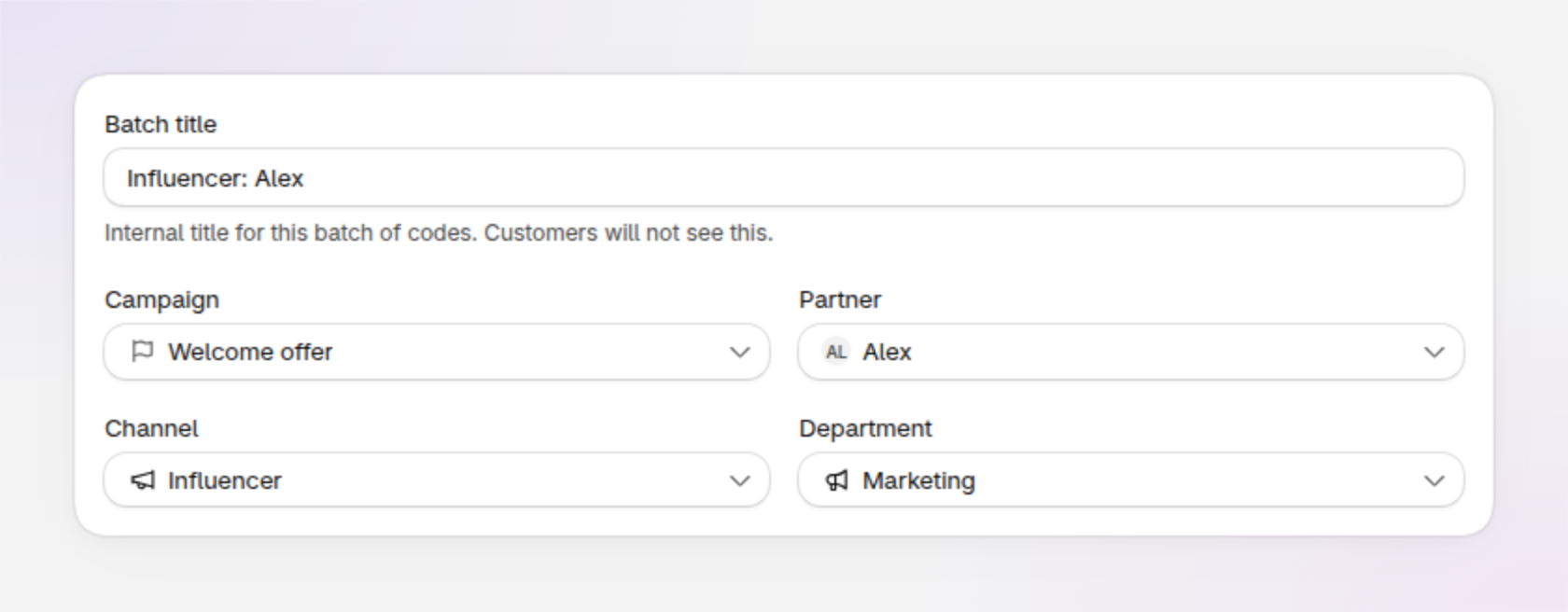
    The top of Discount Magic's batch designer: Batch title Influencer: Alex, then Campaign Welcome offer, Partner Alex, Channel Influencer and Department Marketing.
  • Filter by attribution. Filter the discounts list, or a discount's batches, by campaign, partner, channel or department.
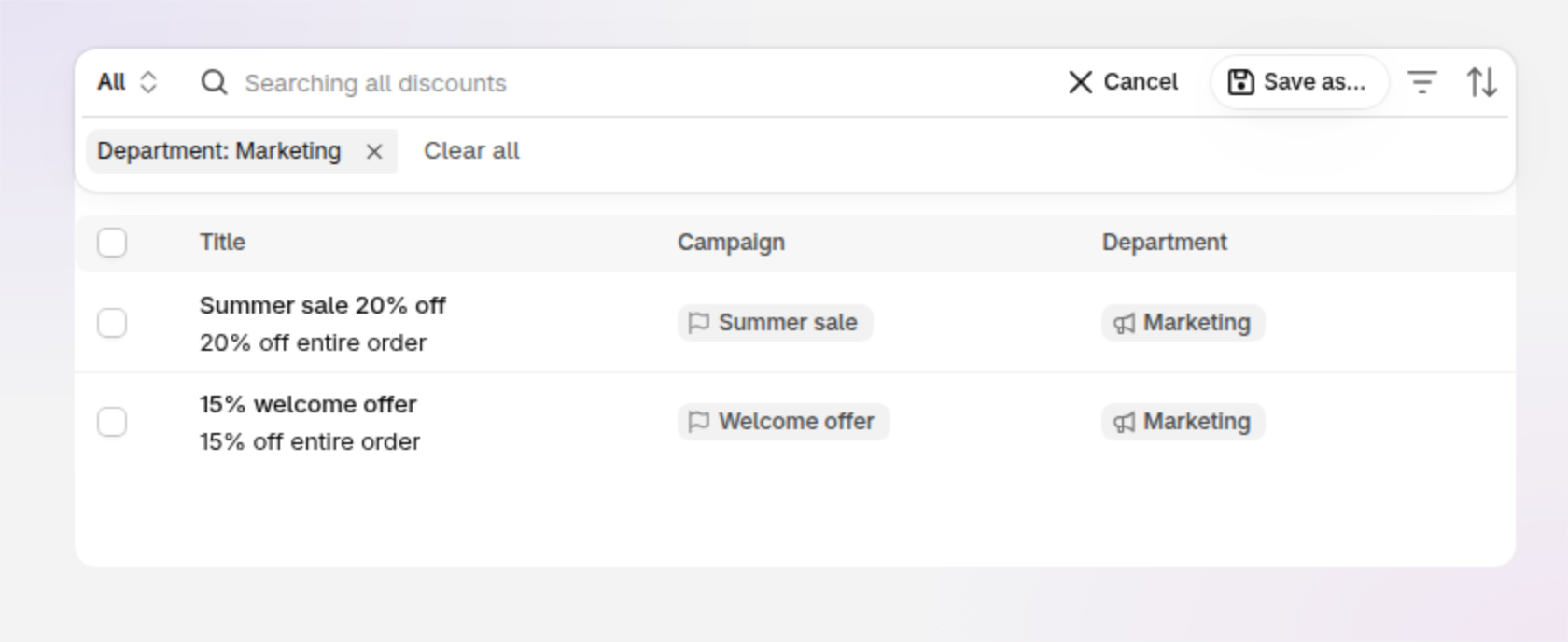
    The discounts list in Discount Magic filtered by Department, with a Department: Marketing filter above the table and two discounts, Summer sale 20% off in campaign Summer sale and 15% welcome offer in campaign Welcome offer, both in department Marketing.

Attribute a discount, its batches, or both

Attribution works at two levels: on the discount itself, and on each batch of codes inside it.

Add attribution to discounts to keep them organised, and to each batch within a discount to help filter and group codes. Both are optional: attribute just the discount, just its batches, both or neither.

When creating a new batch, it will default to the same campaign, partner, channel and department as its parent discount, which you can decide to keep, change or clear.

Easy to manage and update

  • Set attribution directly from discount lists. The discounts and batches lists have new columns for each type of attribution. Click within the list to set or update it.
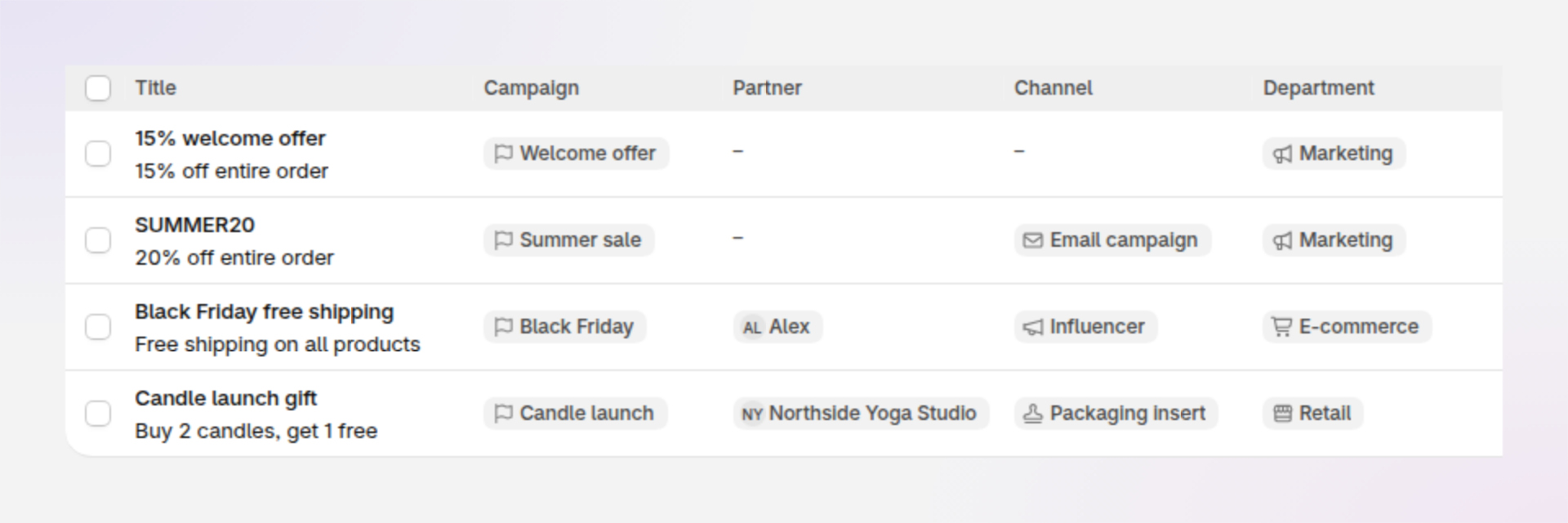
    The discounts list in Discount Magic with Campaign, Partner, Channel and Department columns, showing four discounts attributed to campaigns such as Welcome offer and Black Friday, partners Alex and Northside Yoga Studio, channels Email campaign, Influencer and Packaging insert, and departments Marketing, E-commerce and Retail.
  • Bulk updates. Select multiple discounts or batches and attribute them all in one go.
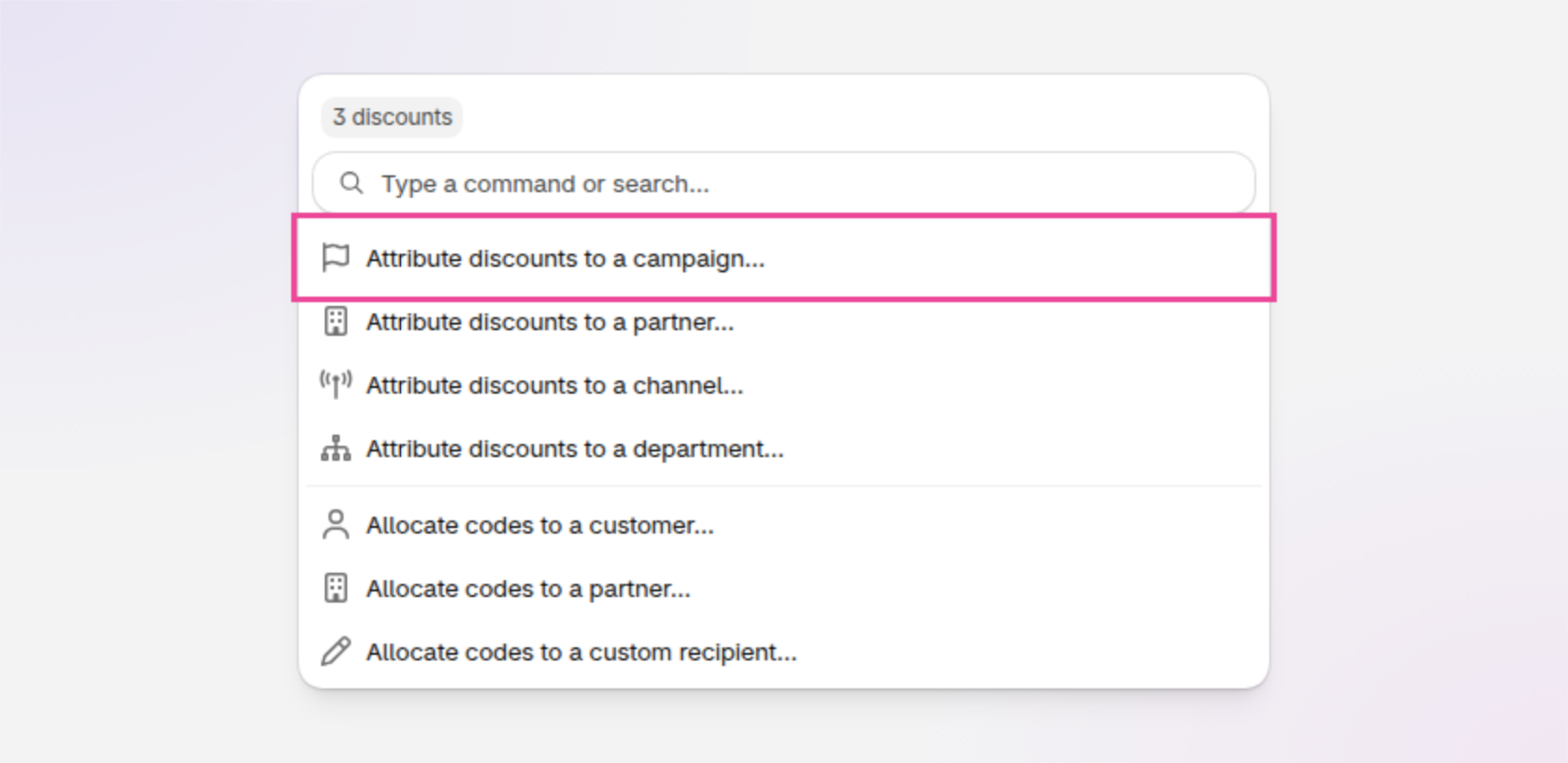
    The Edit window for 3 selected discounts in Discount Magic, listing Attribute discounts to a campaign, to a partner, to a channel and to a department, then the Allocate codes options.
  • See where each is used. Hover over a campaign, partner, channel or department to see how many discounts and batches use it, and click the discount or batches count to see a filtered list of them.

    The Marketing department chip on the discounts list with its hover card open, reading Department this discount is attributed to, Marketing, 12 discounts and 8 batches, with a Department settings link.
  • Every change recorded. As with other discount changes, updates to attribution appear in the discount's or batch's timeline.
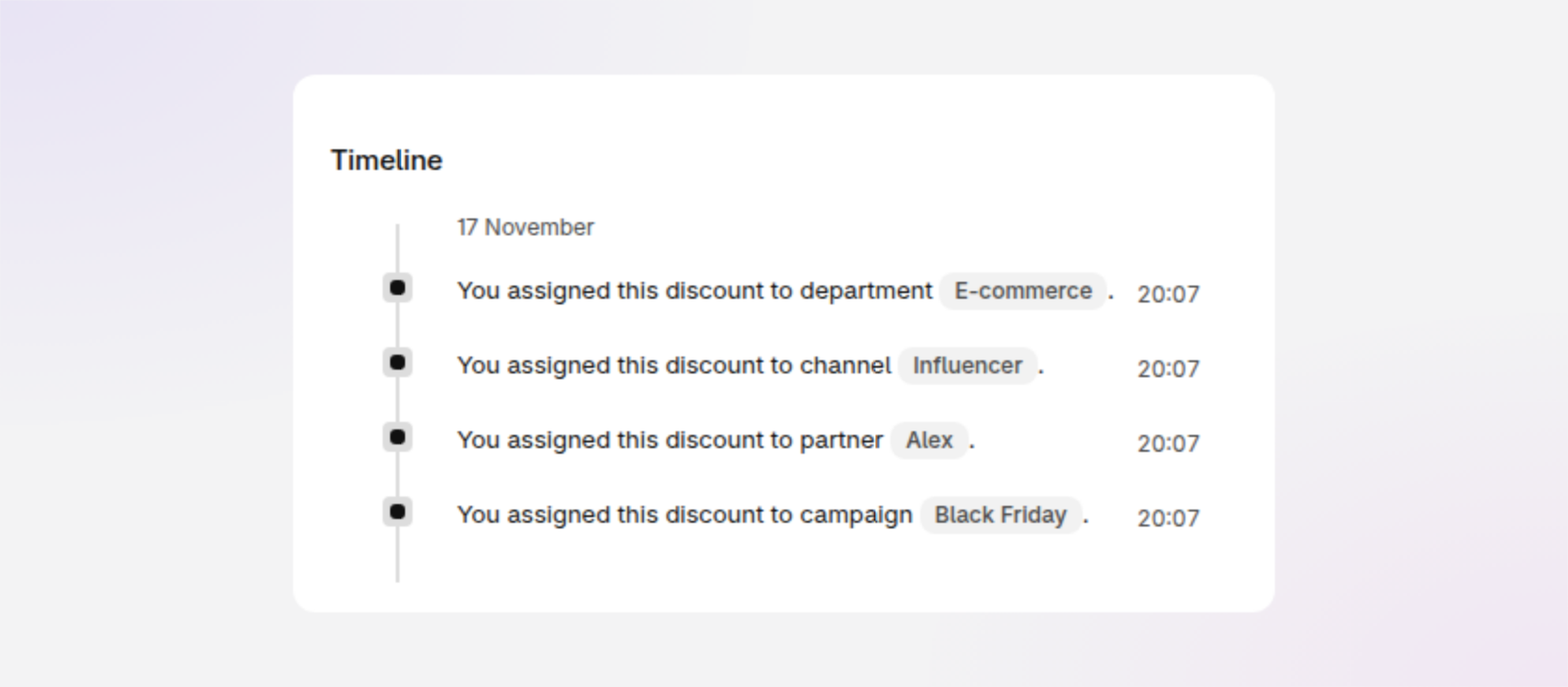
    A discount's Timeline in Discount Magic with four entries: You assigned this discount to department E-commerce, to channel Influencer, to partner Alex and to campaign Black Friday.

Ready-made examples you can shape

When you install Discount Magic, we add common channels and departments as defaults for you to customise. Manage them, and your campaigns and partners, under Settings: add your own, sort them into groups, drag to reorder and hide the ones you don't use.

Read more in our help guides: Discount attribution and Discount batch attribution.


Available for stores on the Pro plan at no extra cost.
NewPro Plan

Sync unique Shopify discount codes to Klaviyo

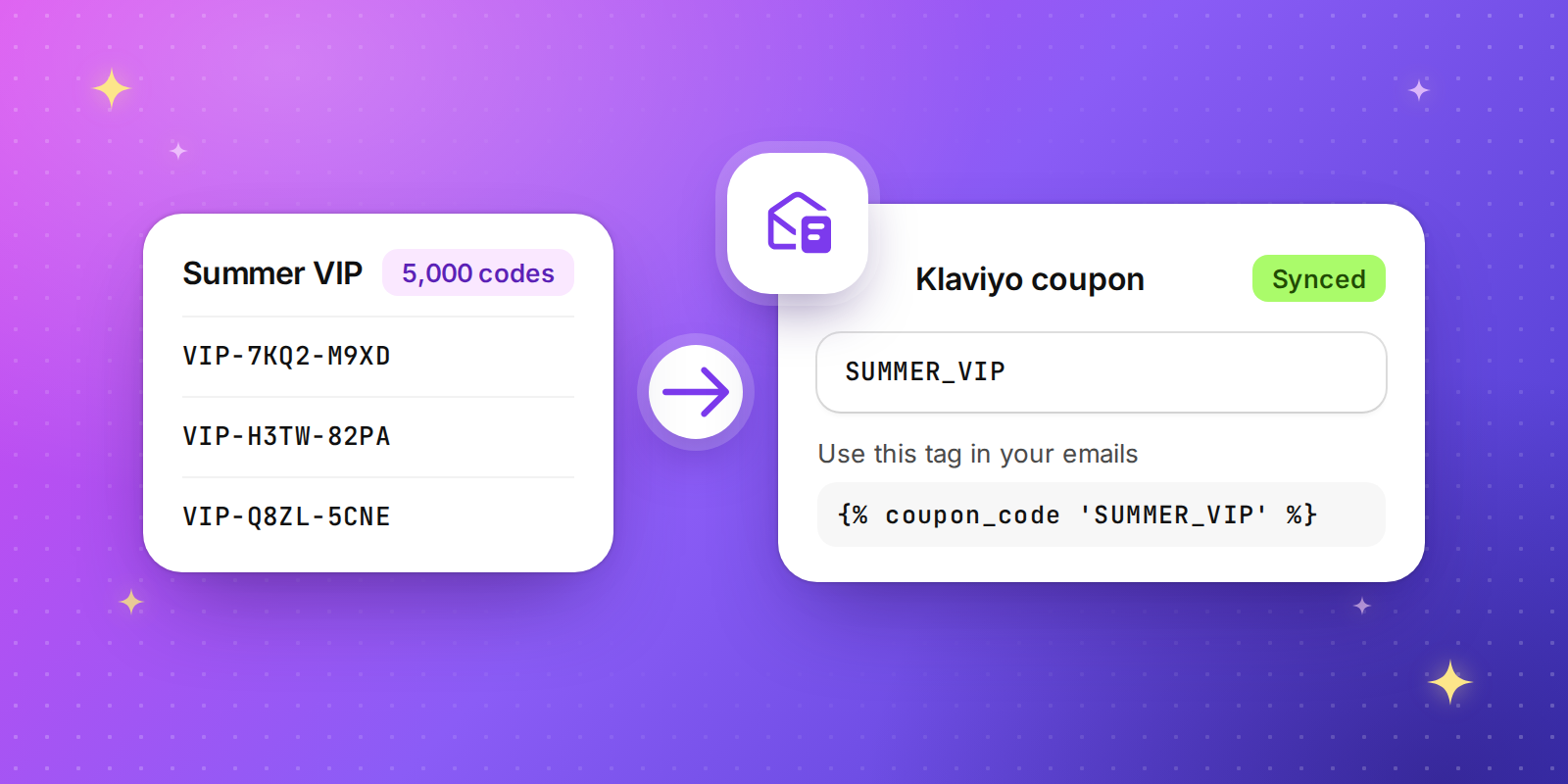
Discount Magic now connects to Klaviyo. Send a batch of unique discount codes to a Klaviyo coupon in a few clicks, and every customer on your list gets their own one-time code in your emails and flows.

How it works

  1. Go to Settings > Integrations > Klaviyo and click Connect.

  2. Open any code batch and choose Sync to Klaviyo.

  3. Pick one of your Klaviyo coupons or create a new one.

  4. Copy the coupon tag from Discount Magic and add it to your Klaviyo email, for example {% coupon_code 'SUMMER_VIP' %}.

Stays in sync on its own

  • Topped up for you. Add codes to a synced batch and they go straight to Klaviyo, so your flows never run dry.

  • Cleaned up for you. Delete codes, a batch or a discount, in Discount Magic or in Shopify, and the unused codes are removed from Klaviyo too.

  • Safe when you pause a discount. Deactivate a discount and you can pull its unused codes from Klaviyo in one click, so nobody is sent a code that won't work.

  • Expiry dates included. Each code carries the discount's end date into Klaviyo.

Built for the way you work

  • Connect more than one Klaviyo account, such as a test account and your live one.

  • Send one batch to several coupons, in the same account or across accounts.

  • Keep working while codes sync. Progress shows in the background tasks panel.


Available for stores on the Pro plan at no extra cost.
NewPro Plan

Bulk upload Shopify discount codes from CSV or Excel

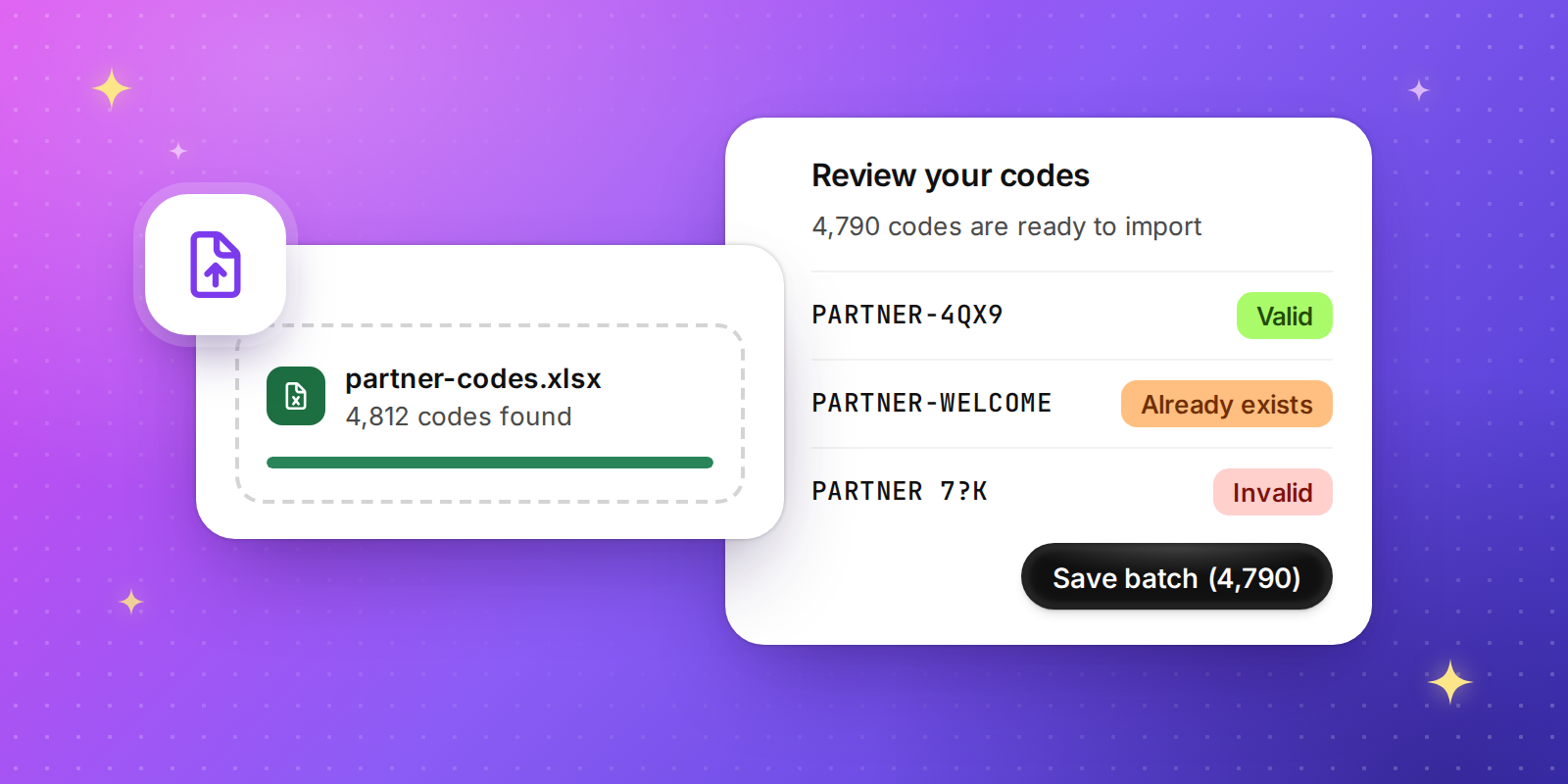
Moving from another platform, or working with existing codes from a partner? Upload them straight into Discount Magic, up to 1,000,000 codes in a single file, and check every one before anything is created in Shopify.

How it works

  1. Create a code discount, or open an existing one and choose Add batch.

  2. Choose Upload CSV and drop in your file.

  3. Review your codes, fix or exclude anything that needs attention, then click Save batch.

Works with the files you already have

Upload CSV, TSV, TXT or Excel (.xlsx) files up to 50 MB. Discount Magic finds the header row and the code column for you, so there's no need to tidy your spreadsheet first.

Problems caught before they reach your store

Every code is checked before it's created, and anything that needs attention is clearly flagged:

  • Already exists: codes that are already in use in your store are left out automatically.

  • Duplicate: repeats within your file are only added once.

  • Invalid: codes Shopify won't accept are marked so you can fix them right there in the list.


Available for stores on the Pro plan at no extra cost.

NewPro Plan