Importing discount codes
Import discount codes you already have into a Shopify discount with Discount Magic, by pasting a list or uploading a CSV or Excel file.
Last updated 4 days ago
If you already have a list of discount codes, you can import them into a Shopify discount with Discount Magic instead of generating new ones. You can paste the codes in, or upload them as a CSV or Excel file. The codes are added to the discount as a batch.
Use your own codes whenever the codes already exist somewhere outside Shopify. For example:
Codes you have already printed or sent: gift cards, flyers, packaging inserts or emails that already carry codes.
Codes from another system: a list exported from another app, a loyalty program or a previous store.
Codes a partner gave you: a list from an affiliate network, a marketplace or a membership organization.
Vanity codes: memorable codes you chose yourself, such as one for each influencer.
To have Discount Magic create new random codes instead, see Bulk generating unique discount codes.
Which plans include importing discount codes
How to choose between pasting and uploading codes
Paste codes: for up to 10,000 codes that you can copy from a document or spreadsheet. Discount Magic checks the list as you paste it.
Upload CSV: for a CSV or Excel file with up to 1,000,000 codes. Discount Magic checks every code and shows you the results on a review screen, where you can fix or leave out problem codes before anything is created.
Both methods start in the batch designer, which you can open from Home, from a discount's page, or from the discount form. See where to start a batch.
Rules for a valid discount code
Discount Magic checks each code against the same rules, whichever method you use:
A code can be up to 255 characters long, which is the longest Shopify accepts.
A code can't already exist in your store, on this discount or any other.
A code can appear only once in your list. Repeats are left out.
Discount Magic saves your codes in uppercase and removes spaces before and after each one. Shopify discount codes aren't case sensitive, so welcome10 and WELCOME10 are the same code to a customer.
How to paste a list of codes
Choose Paste codes
Open the batch designer (see where to start a batch). In the Method section, choose Paste codes.
Paste your list
Paste your codes into the box, with one code on each line or with commas between them. You can paste up to 10,000 codes.
Below the box, Discount Magic shows how many codes it found, such as "1,200 codes detected". The same line counts any repeats it ignored and any codes that are too long.
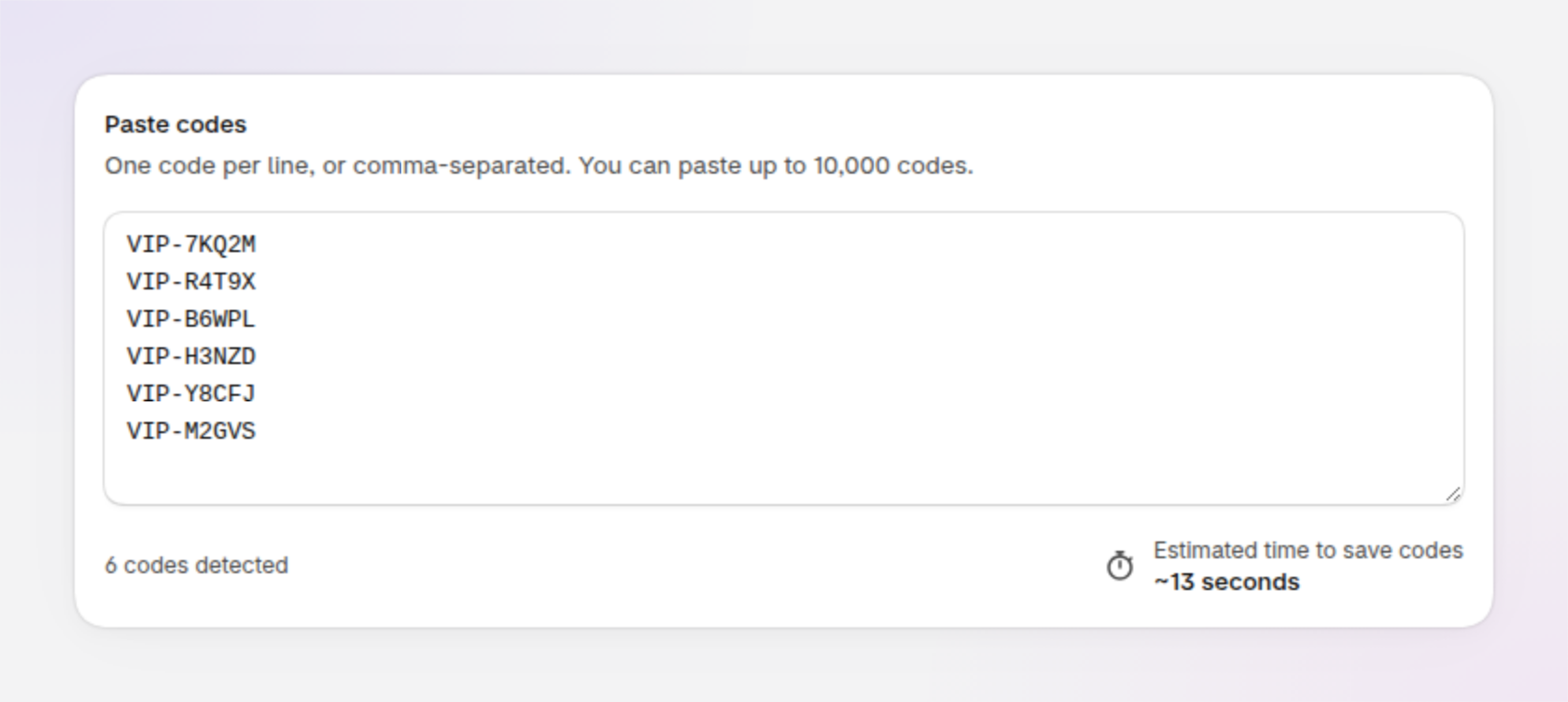
An example of the Paste codes section with a short list of codes pasted in.
Fix flagged codes
If you pasted more than 10,000 codes, click Trim to 10,000 codes to keep the first 10,000, or Upload a CSV instead to import the whole list as a file.
If some codes already exist in your store, Discount Magic lists them. Click Remove conflicting codes to take them out of your list. You can't save the batch while it still contains a code that already exists.
Save the batch
Click Save batch. From here the steps are the same as for generated codes: see How to create a batch from Home for how the codes are then created.
How to upload a CSV or Excel file of codes
Choose Upload CSV
Open the batch designer (see where to start a batch). In the Method section, choose Upload CSV.
Add your file
Drop your file onto the upload area, or click it to browse. See how to set up your file for what Discount Magic accepts.
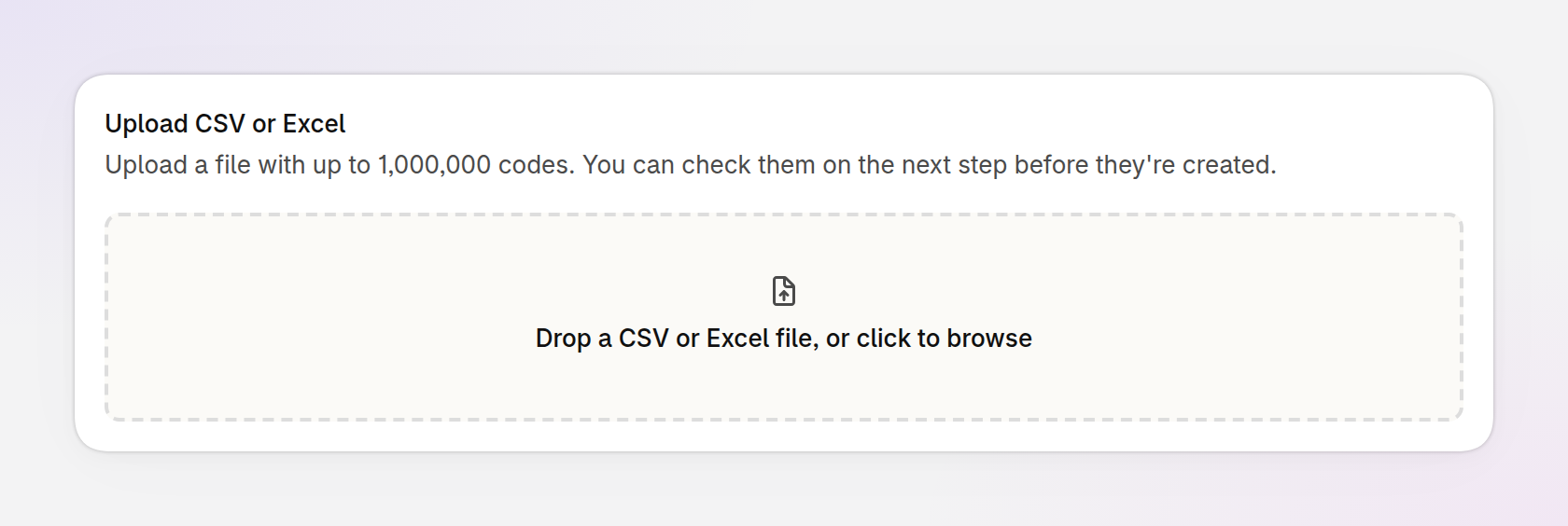
An example of the Upload CSV or Excel section, where you drop or choose your file.
Discount Magic uploads the file and then checks it, showing Analysing your codes… while it works. A large file can take a little while.
Review your codes
Review your codes opens when the check is done. It shows how many codes are ready to import and how many have a problem. See How to review your imported codes below for what you can do here.
Upload only the codes you expect to use. Every code counts toward Shopify's limit of 20,000,000 unique discount codes per store.
How to set up your file of codes
File type: CSV, TSV, plain text (.txt) or Excel (.xlsx).
Size: up to 50 MB, with up to 1,000,000 codes.
Layout: one code in each row. Blank rows are skipped.
Header row: optional. If the first row is a column name such as "Code" or "Discount code", Discount Magic treats it as a header and doesn't import it.
Other columns: allowed. Discount Magic imports one column and ignores the rest.
When a file has more than one column, Discount Magic picks the code column for you. It looks first for a column name that contains "code", "coupon", "voucher" or "discount", and otherwise picks the column whose values look most like codes. If it picks the wrong one, choose the right column under Code column at the top of Review your codes, and Discount Magic checks the file again.
Discount Magic imports the codes only. Other details in your file, such as a customer name or an expiry date for each code, aren't imported. The discount sets each code's value and who can use it.
How to review your imported codes
Review your codes lists every code in your file, 100 to a page, with the result of the check beside it.
See the totals: the line above the list shows how many codes are ready to import and how many have a problem. Click Show problems to see only the problem codes.
Filter the list: the tabs show All, Valid, Already exists, Invalid and Duplicate, each with its count. A tab appears only when your file has codes of that kind.
Find a code: type part of it into Search codes….
Fix a code: edit the code in the list and press Enter. Discount Magic checks the new code right away.
Leave a code out: point to a valid code and click Exclude at the end of its row. To leave out several at once, select them and click Exclude in the bar that appears. Include puts a code back.
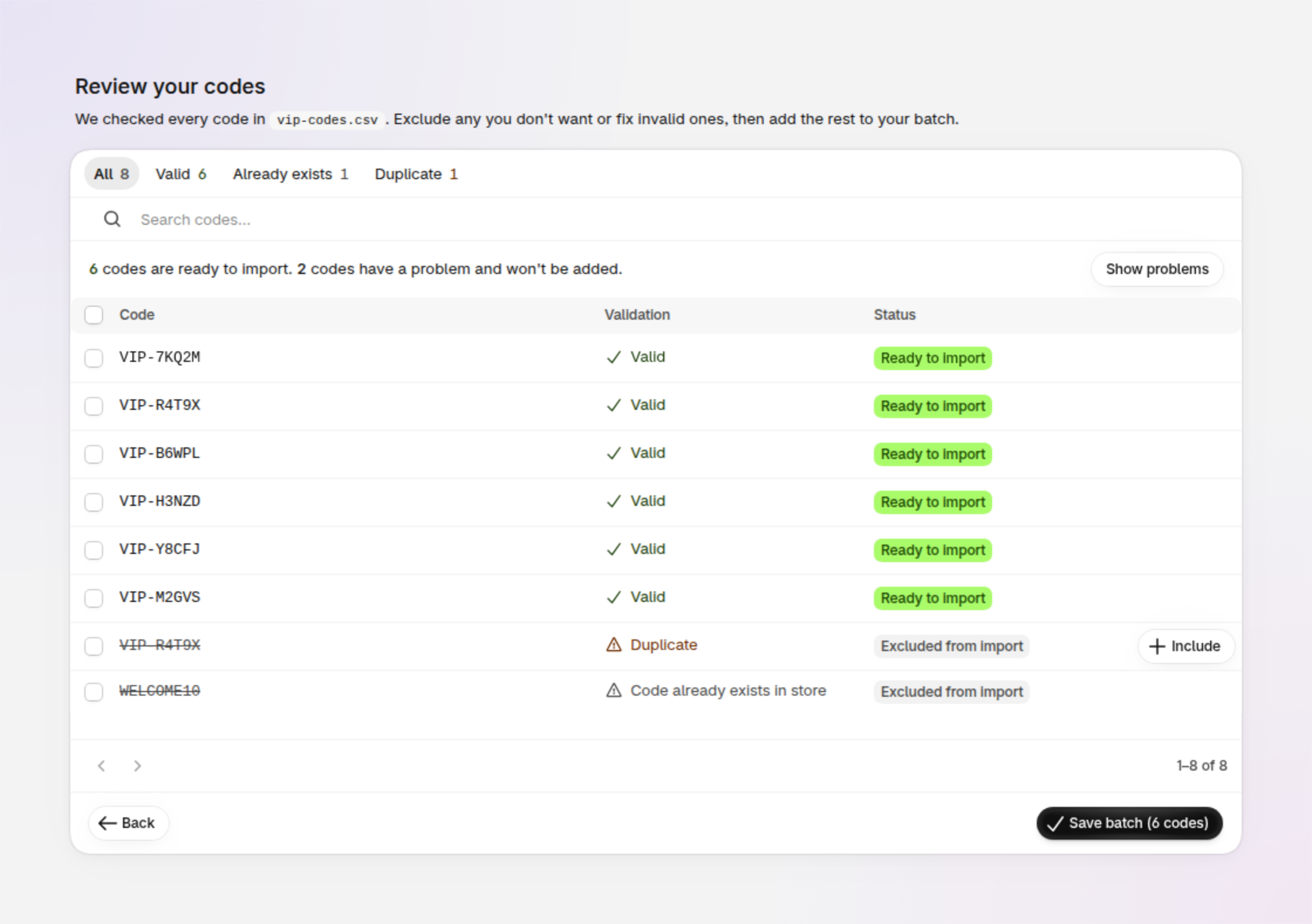
An example of the Review your codes screen, with six codes ready to import and two with a problem.
Each code has a status. Ready to import means the code will be created in your batch. Excluded from import means the code won't be added, either because it has a problem or because you chose to leave it out. Excluded codes are shown crossed out. Update required means you included a code that still has a problem, so it won't be added until you fix it.
You don't have to fix every problem. Codes with a problem are left out, and Save batch adds the rest.
Problems an imported code can have
Already exists
Review your codes shows this problem as "Code already exists in store". The code is already in your store, on this discount or another one, so it can't be added a second time. Edit it to a code that isn't in use, or leave it out. A code that already exists can't be included as it is.
Invalid
The code is empty or contains characters that can't be used in a code, such as a tab or line break hidden inside a cell. Edit it to a valid code, or leave it out.
Too long
The code is longer than 255 characters. Edit it to a shorter code, or leave it out. A code that's too long often means Discount Magic picked the wrong column: check Code column.
Duplicate
The code appears more than once in your file. Discount Magic uses the first one and leaves out the repeats, so you don't need to do anything. To keep a repeat, edit it to a different code.
Frequently asked questions
Can I import discount codes into Shopify from a CSV file?
Yes, with Discount Magic on the Pro plan. In the batch designer, under Method, choose Upload CSV and add a CSV or Excel file with one code in each row. Discount Magic checks the codes, shows you any problems, and then creates the codes on your Shopify discount.
How many discount codes can I import at once?
Up to 1,000,000 codes in one file, or up to 10,000 codes with Paste codes. To import more, add another batch to the same discount. A discount can have as many batches as you need.
Why does Discount Magic say a code already exists?
The code is already in your store, on this discount or on a different one. Each discount code in a store has to be unique, so the same code can't be added twice. Change the code, or leave it out and import the rest.
Does Discount Magic change my codes when I import them?
Only their letter case and the spaces around them. Discount Magic saves codes in uppercase and removes spaces before and after each code. Customers can still type a code in lowercase at checkout.
Can I import usage limits or customer details with each code?
No. Discount Magic imports the codes only. Usage limits, eligibility and dates are set on the discount and apply to the codes in it.
What happens to the codes I leave out?
Codes you leave out aren't created in Shopify and aren't saved in the batch. If you want them later, fix them in your file and import them as a new batch.
Related articles
Was this helpful?
Still need help? Ask the team