Discount batch attribution
Attribute each batch of discount codes in Discount Magic to its own campaign, partner, channel and department, and compare the revenue each batch drives.
Last updated 5 days ago
Each batch of discount codes can have its own campaign, partner, channel and department. Batch attribution lets you organize and track one offer separately for each channel, partner or campaign its codes are distributed through. For example, a 15% welcome offer could have one batch for a welcome email, one for an influencer and one for a voucher website.
With your batches attributed, you can:
See a discount's batches grouped by channel, so all your email batches are listed together.
Find and filter a discount's batches by campaign, partner, channel or department.
See where sales come from: sales made with a batch's codes are credited to the batch's campaign, partner, channel and department.
To learn what each one means, see Campaigns, Partners, Channels and Departments.
Which plans include discount batch attribution
How to attribute a new batch
When you create a batch, you can assign it to a campaign, partner, channel and department under Batch title. To save you time, Discount Magic fills these in with the discount's own campaign, partner, channel and department. You can change any of them, or choose No campaign, No partner, No channel or No department to leave one out.
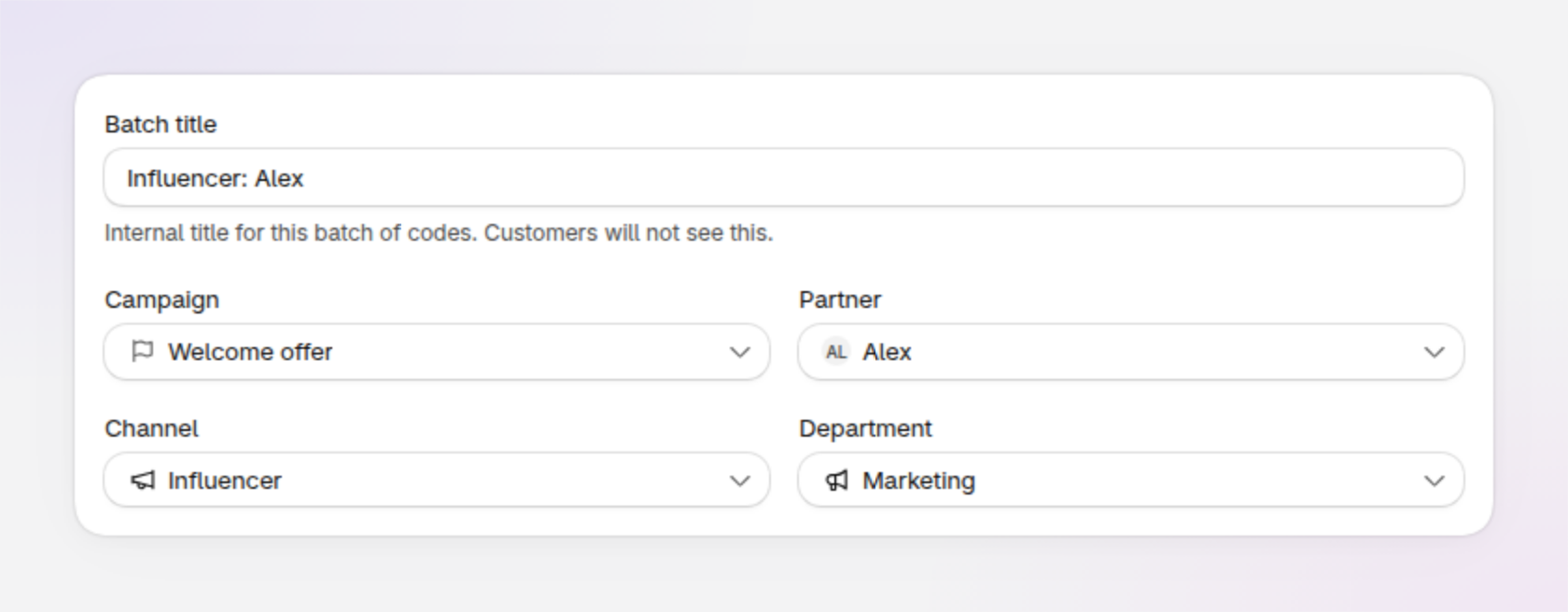
An example of a new batch with its campaign, partner, channel and department chosen.
How to change a batch's attribution
Open the batch
In Discount Magic, go to Discounts and click the discount's title. In Discount code batches, click the batch.

You can also right-click a batch in Discount code batches on the discount's page and choose Campaign, Partner, Channel or Department.
How to attribute many batches at once
Select the batches
In Discount Magic, go to Discounts and click the discount's title. In Discount code batches, tick the batches you want to change.
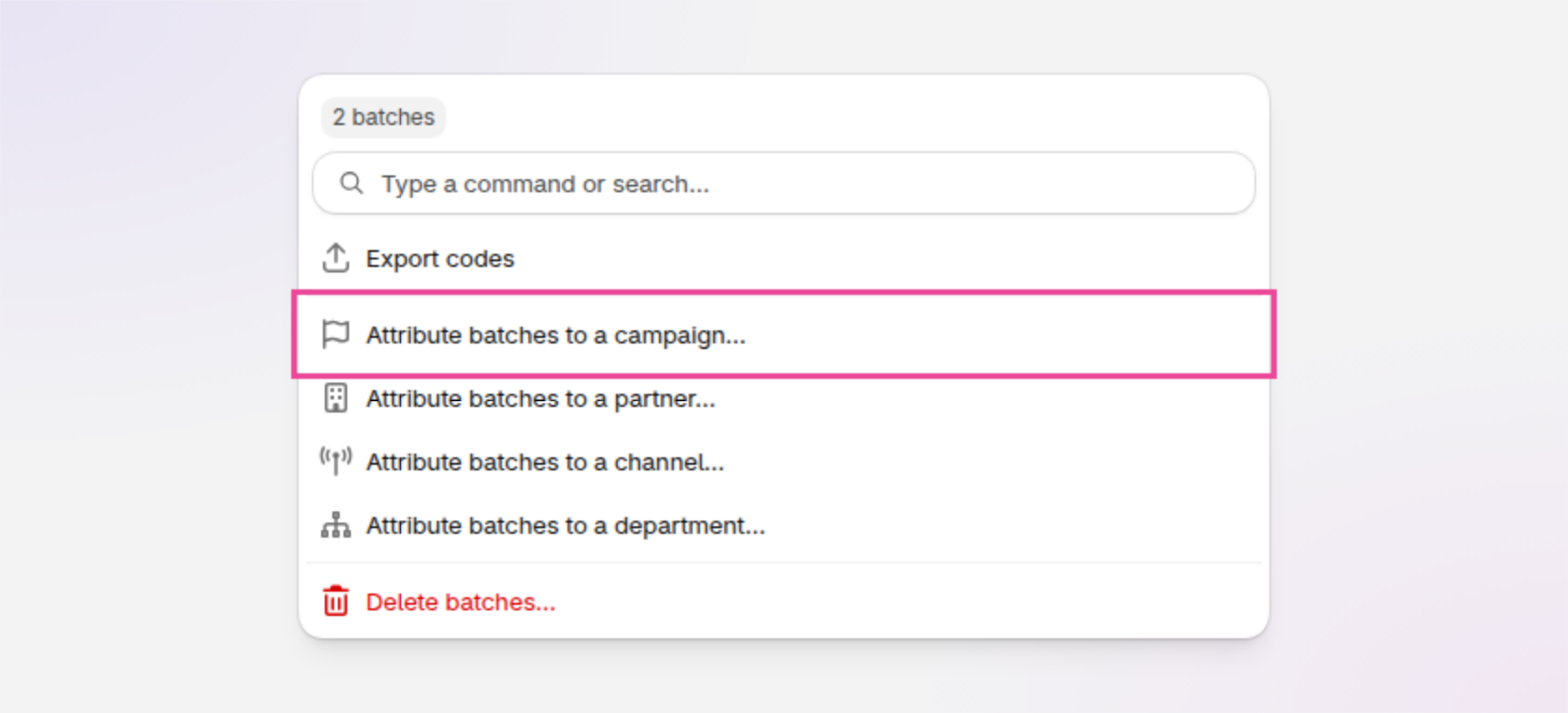
A message confirms the change, such as Campaign changed on 3 batches, with Undo to reverse it.
How a discount's batches are grouped by channel
On a discount's page, Discount code batches shows each batch's campaign, partner, channel and department. Batches are grouped by the group their channel belongs to, such as Email, SMS and push, with batches that have no channel last. See how channel groups work.
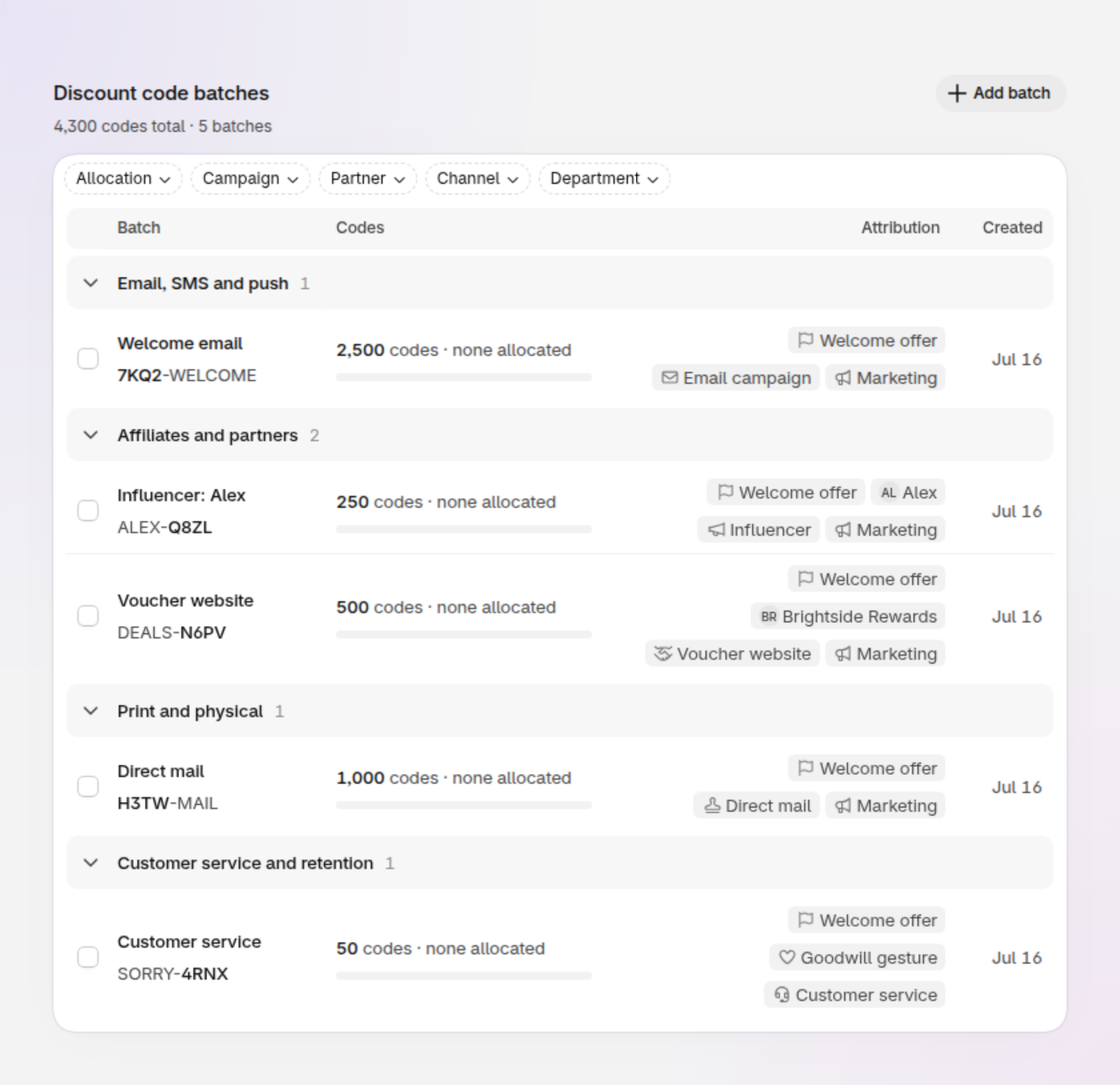
An example of a discount's batches, grouped by the group each batch's channel belongs to.
How to filter a discount's batches by attribution
On a discount's page, Discount code batches has Campaign, Partner, Channel and Department filters. Each filter lists only the campaigns, partners, channels or departments that the discount's batches use.
Tick several in one filter to see batches with any of them.
Use more than one filter to see only batches that match all of them.
Choose No campaign, No partner, No channel or No department to find batches that haven't been attributed yet.
How batch attribution and discount attribution differ
Attribution works at two levels: on a discount, and on each of its batches. Use the discount's attribution to organize your discounts, and each batch's to group the codes within it. Both are optional: attribute just the discount, just its batches, both or neither.
A discount's campaign, partner, channel and department are only the starting point for its new batches. Once a batch is created, the batch's attribution and the discount's are separate: changing the discount doesn't change its batches, and changing a batch doesn't change the discount. To change the discount itself, see Discount attribution.
Sales made with a batch's codes are credited to the batch's attribution. Sales made with a discount's own code are credited to the discount's.
How to see who changed a batch's attribution
Every change is recorded in the Timeline at the bottom of the batch's page, with who made it and when.
Frequently asked questions
Can individual codes have their own campaign or channel?
No. In Discount Magic, every code in a batch shares the batch's campaign, partner, channel and department. To track codes separately, put them in different batches. To record who each code went to, allocate the codes.
If I change a discount's campaign, do its batches change too?
No. A batch keeps its own campaign, partner, channel and department. Change the batches as well if you want them to match.
Do I have to attribute a batch if its discount is attributed?
No. Attribution is optional on both a discount and its batches. A new batch starts with the discount's campaign, partner, channel and department, and you can choose No campaign, No partner, No channel or No department to leave any out.
Can I see sales by batch, partner or channel?
Yes, on the Pro plan. On a discount's page, the Performance section can break the discount's orders down by batch, campaign, partner, channel or department. See Discount performance.
Related articles
Was this helpful?
Still need help? Ask the team