Auto-replenish
Auto-replenish tops up a Discount Magic batch of unique discount codes based on its allocation rate, so Klaviyo flows and staff never run out of codes.
Last updated 5 days ago
Auto-replenish keeps a batch of unique discount codes topped up as codes are allocated. When the batch is running low, Discount Magic adds more codes to the same batch, in the same code format, before it runs out. If the batch is synced to Klaviyo, the new codes are sent there too.
Use auto-replenish for batches with a steady allocation rate, where codes are allocated one at a time. For example:
A Klaviyo welcome flow: every new subscriber gets a code, and Klaviyo skips recipients when the coupon runs out.
Customer service or in-store staff: your team issues codes as needed.
Which plans include auto-replenish
How auto-replenish works
Discount Magic tracks each batch's allocation rate: the number of codes allocated or used each day. A code counts once it is allocated, including when Klaviyo sends it to someone, or once it is used at checkout. Every other code is available.
When too few codes are available, Discount Magic adds a top-up of new codes. It never removes or changes codes that are already in the batch.
New codes are ordinary codes. They give the same discount, appear in the batch's codes list, can be exported and allocated like any others, and count toward Shopify's limit of 20,000,000 codes per store.
How to turn on auto-replenish
Open the batch
In Discount Magic, go to Discounts and click the discount's title. In the Discount code batches section, click the batch.
Click Turn on
In the Usage section on the right of the batch's page, under Auto-replenish, click Turn on. The Auto-replenish window opens with your default settings filled in.
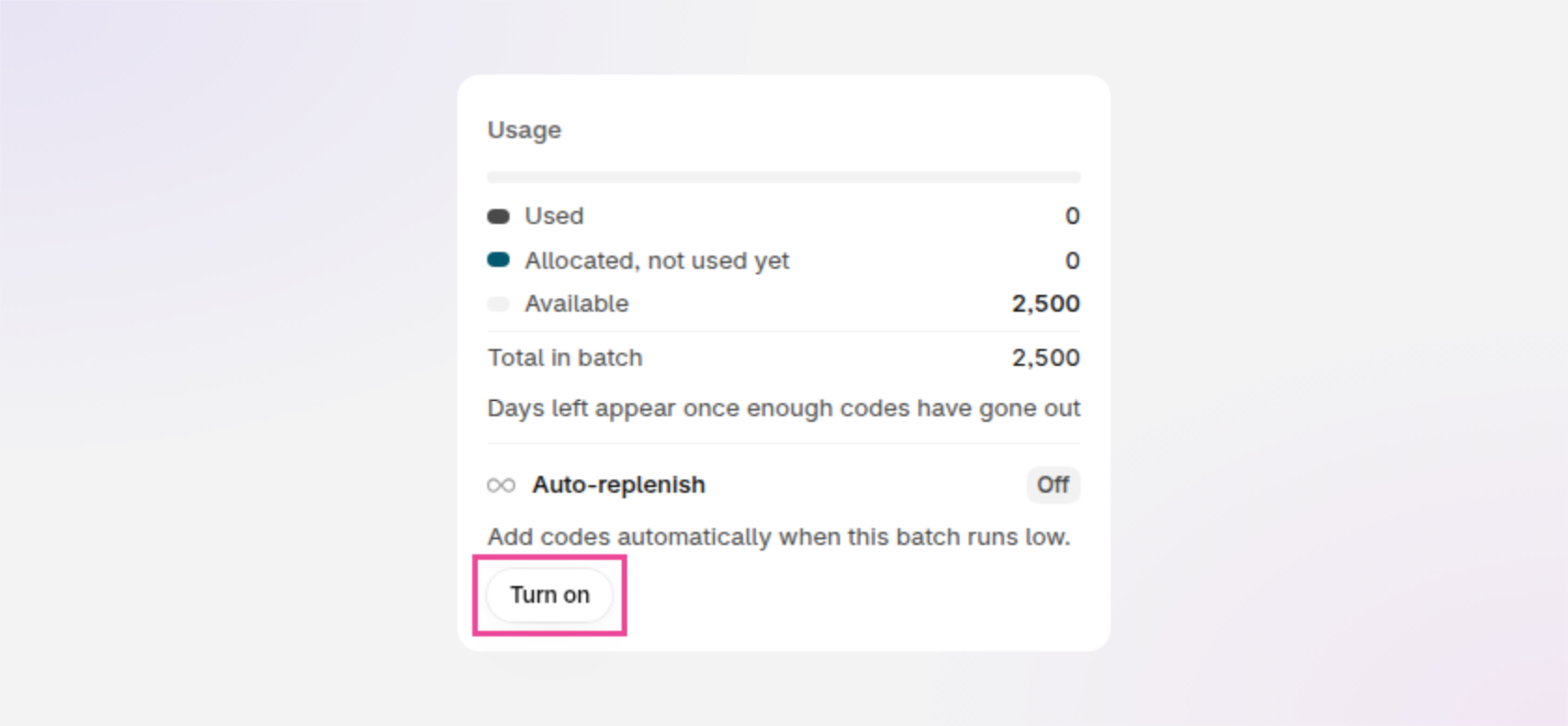
An example of the Usage section on a batch's page, with Turn on outlined.
Choose a top-up method
Under Top-up method, choose Match demand or Fixed threshold. See How to choose a top-up method.
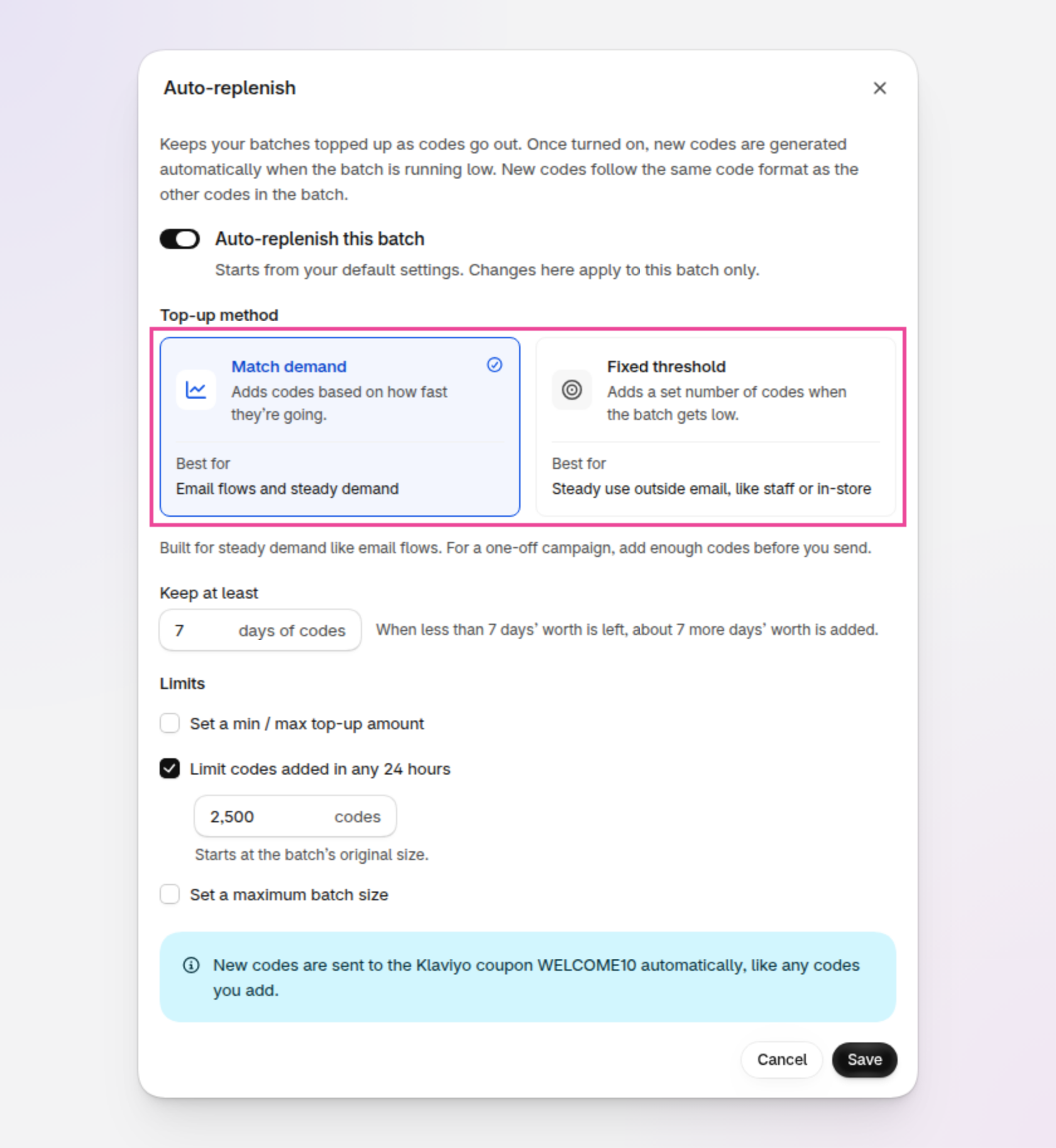
An example of the Auto-replenish window, with Top-up method outlined.
Check the limits and save
Review the limits. The window shows what will happen next, such as "With these settings, the next top-up adds about 990 codes around 24 Oct". Click Save.
You can also turn on auto-replenish:
When you generate a new batch: in the When codes run low section, below the number of codes. Auto-replenish starts off for a new batch. Turn it on to use your default settings, which you can change for this batch before you save.
From the batch's Klaviyo tab: a batch synced to Klaviyo shows Using WELCOME10 in a Klaviyo flow? with Turn on auto-replenish. Clicking it opens the Auto-replenish window with Match demand already chosen.
Auto-replenish is never on by default. Each batch keeps its own copy of the settings, so changing one batch doesn't change any other.
Auto-replenish is only available for batches of generated codes. A batch of pasted, uploaded or imported codes shows "Not available for imported, uploaded or pasted codes yet, because there's no code format to make new ones from."
How to choose a top-up method
Match demand
Enter how many days of codes to Keep at least, from 1 to 60 (7 to start with). When less than that many days' worth is left, about that many more days' worth is added. For example, with 7 days, a batch that allocates about 140 codes a day gets a top-up when fewer than about 980 codes are left.
Match demand also allows for:
The time a top-up takes: Match demand starts each top-up early enough for the new codes to be ready, and for a Klaviyo-linked batch, to reach Klaviyo, before the batch runs out.
The discount's end date: Match demand never adds more codes than are likely to be allocated before the discount ends.
Spikes: a sudden burst makes Match demand top up sooner, but doesn't size the top-up on the burst alone.
A new batch has no allocation rate yet. Until at least 50 codes have been allocated and an hour has passed, the batch is learning: codes are added when 10% or fewer of the batch's original size remain. The Usage section says "Codes are added based on how fast they're going, or when 10% or fewer remain."
Fixed threshold
Fill in the sentence When only [10%] remain, add [5,000 codes]. The percentage is between 1% and 90%. Both numbers start from the batch's original size: the number of codes it had when you first turned on auto-replenish.
The percentage is always of the original size, so it doesn't grow with each top-up. For example, a batch of 5,000 codes set to 10% always tops up when 500 or fewer are available, however many top-ups it has had. The Usage section shows this as "Adds 5,000 codes when 500 or fewer are available".
Auto-replenish limits
Limits stop auto-replenish from adding more codes than you want. Tick a limit in the Limits section of the window to set it.
Limit codes added in any 24 hours: the most codes auto-replenish adds to this batch in any 24 hours. This limit is ticked to start with, set to the batch's original size. When the limit is reached, the batch shows Waiting and resumes automatically once the 24-hour window allows more.
Set a min / max top-up amount: each top-up is rounded up to the Min or down to the Max. A maximum splits large top-ups into smaller ones.
Set a maximum batch size: auto-replenish stops adding codes once the batch holds this many. Useful for an offer like "first 20,000 customers". The batch then shows Maximum reached.
There's also a store-wide limit: the most codes auto-replenish can add across all your batches in any 24 hours, 100,000 to start with. It applies to auto-replenish only. Codes you add yourself with Add codes are never limited by it. You can change it in Settings › Auto-replenish.
How to monitor auto-replenish
Every batch's page has a Usage section on the right, whether auto-replenish is on or off. It shows:
A bar of Used, Allocated, not used yet and Available codes, and the Total in batch.
How long the available codes should last, such as "About 9 days left at roughly 140 codes a day". Hover over the question mark to see how the estimate is worked out.
The auto-replenish status, the settings, when codes were last added and when the next top-up is expected.
The Allocations tab lists who each code is allocated to, including one Klaviyo row for each linked coupon. Codes Klaviyo has sent can't be deallocated: Deallocate all codes… leaves them allocated, so no code is allocated twice. Each top-up also appears in the batch's timeline, such as "Auto-replenish added 1,200 codes to this batch.", with the reason in its details.
Auto-replenish statuses
The badge in the Usage section shows what auto-replenish is doing. Most statuses need no action.
On
Auto-replenish monitors the batch and adds codes when it runs low. While auto-replenish is still measuring the allocation rate, the Usage section says so.
Adding codes
A top-up is being created, such as "Adding 1,200 codes, about 7 days' worth". Codes already in the batch keep working. The top-up also shows in the background tasks panel.
Waiting
Auto-replenish is still on and resumes automatically. The Usage section says why:
This batch's 24-hour limit: "This batch's limit of 25,000 codes in 24 hours has been reached. More codes will be added from 14:30." To add codes sooner, click Increase limit.
The store-wide limit: "Your store's limit of 100,000 codes in 24 hours has been reached." Click Increase limit to change it in Settings › Auto-replenish.
Klaviyo can't be reached: "Can't reach Klaviyo to see which codes were sent." Discount Magic checks again every 15 minutes.
New codes are on their way to Klaviyo: no more codes are added until the last ones arrive.
If the Usage section says the batch's limit is below its daily allocation rate, the batch will run out every day until you raise the limit. Click Increase limit.
Maximum reached, Discount inactive and Needs Pro
Auto-replenish is on but isn't adding codes, because of your own setting, the discount's status or your plan. These aren't errors:
Maximum reached: the batch reached its maximum batch size. Click Increase limit to raise it.
Discount inactive: the discount is deactivated or a draft. Auto-replenish resumes when it's active. A scheduled discount counts as active.
Needs Pro: your store isn't on the Pro plan. Your settings are kept, and auto-replenish resumes if you upgrade.
Paused
Auto-replenish has stopped adding codes and needs your action. Codes already in the batch keep working. The batch is also listed in Needs attention, the batch has a red mark in the Discount code batches section on the discount's page, and the Usage section shows the reason and a button to fix it:
Ended
The discount has ended, so no more codes are added. The Usage section shows the end date and how many codes auto-replenish added. Your settings are kept. If you move the discount's end date later, auto-replenish resumes.
Off
Auto-replenish doesn't add codes to this batch. You can still add codes manually, and the Usage section still shows how long the codes should last.
Auto-replenish for batches synced to Klaviyo
For a batch synced to a Klaviyo coupon, auto-replenish counts the codes Klaviyo still holds, and sends each top-up to every linked coupon automatically. The Auto-replenish window says so, such as "New codes are sent to the Klaviyo coupon WELCOME10 automatically, like any codes you add."
How quickly: Discount Magic checks Klaviyo every 5 to 60 minutes, more often when the coupon is getting low. New codes usually reach Klaviyo within an hour of the batch running low.
Expiry dates: if you change the discount's end date, codes in Klaviyo that haven't been sent yet move to the new date, and new codes are sent with it. Codes Klaviyo has already sent keep theirs. See Expiry dates.
Klaviyo's own warning: Discount Magic raises the coupon's low-balance warning in Klaviyo to about twice the codes allocated while a top-up is in progress, and never below 100, so Klaviyo also emails you if the coupon gets low. It only ever raises the warning, at most once a day, so a higher number you set yourself is kept.
One batch per coupon: if several batches feed the same coupon, turn on auto-replenish for only one of them. Each batch counts only its own codes, so two could add about twice the codes the coupon needs.
Situations auto-replenish can't handle
Keep up with a one-off campaign: a Klaviyo campaign sends a code to every recipient at once. Shopify creates about 50 codes a second for each discount, and Klaviyo needs about 90 seconds for every 20,000 new codes, so no top-up can catch up. Before you send, make sure the batch holds at least one code for every recipient.
Predict demand: auto-replenish reacts to a batch's allocation rate so far, not to upcoming sales or campaigns. A new batch measures its allocation rate first, and meanwhile gets a top-up when 10% or fewer of its original codes remain.
Send new codes to a partner: exported codes count only once they're used, and new codes are never added to an export you've already sent. For partner and affiliate batches, add codes manually when the partner asks for more.
Tell a bot from a customer: if bots sign up to a flow that issues codes, auto-replenish keeps the batch supplied up to your limits and warns you about unusual demand. Use double opt-in or bot protection on those flows.
Email you: alerts appear in the app, on the batch page, the discount page, Settings › Auto-replenish and in Needs attention.
Default settings and the store-wide limit
In Discount Magic, go to Settings and click Auto-replenish to see and change:
Default settings: the settings a batch starts with when you turn auto-replenish on. Changing the default settings doesn't affect batches already using auto-replenish. Leave the number of codes to add empty to use each batch's original size.
Store-wide limit: the most codes auto-replenish can add across all batches in any 24 hours, from 1,000 to 1,000,000. Below the limit, Discount Magic shows how many codes your store has toward Shopify's limit of 20,000,000. The message turns into a warning from 80%, and also warns if auto-replenish's pace would reach the limit within about 90 days.
Batches using auto-replenish: every batch with auto-replenish, its settings, status and how long its codes should last. Paused and waiting batches are listed first.
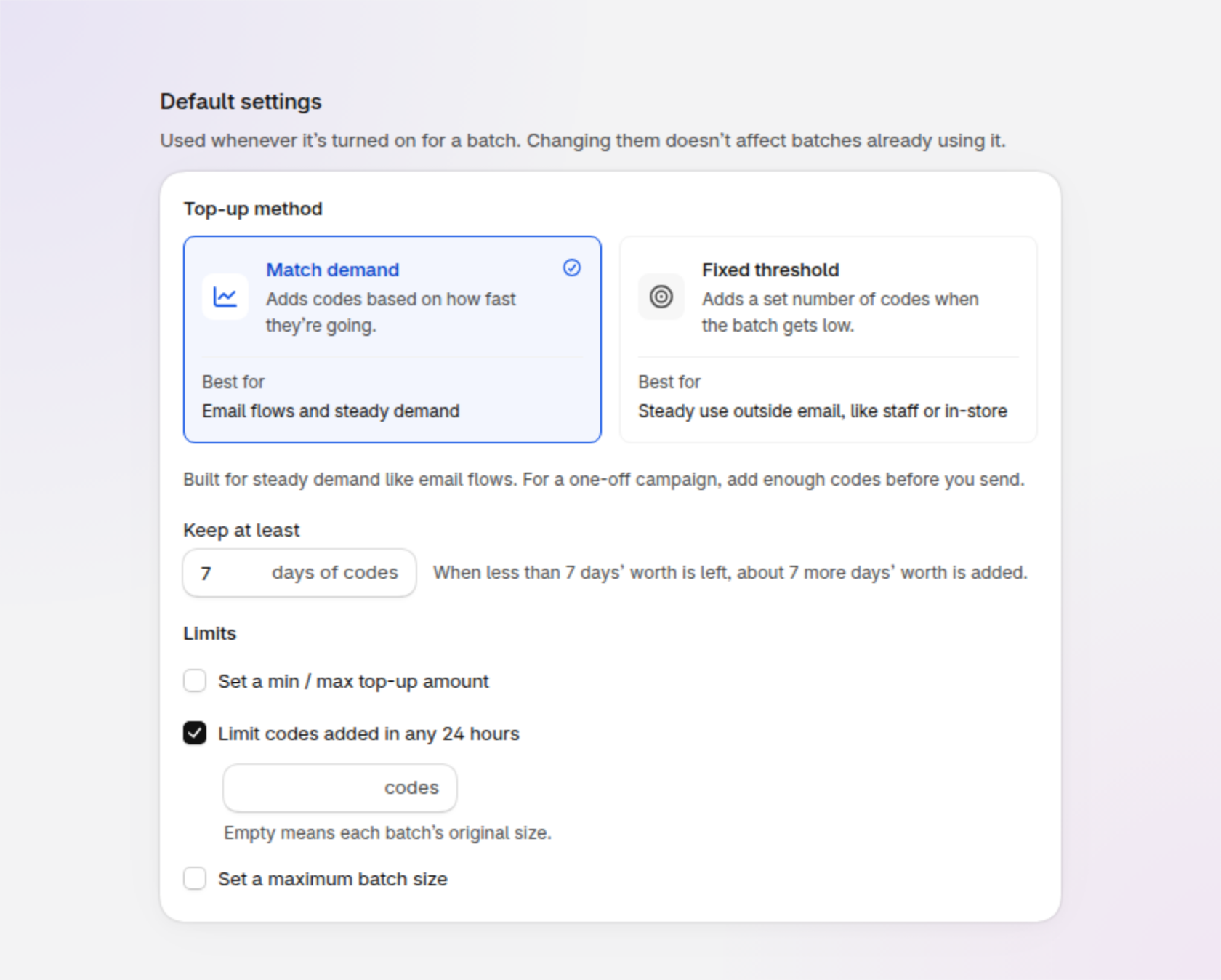
An example of the Default settings section on the Auto-replenish settings page.
How to change or turn off auto-replenish
In Discount Magic, go to Discounts, click the discount's title, then click the batch in the Discount code batches section. In the Usage section on the right, click Edit settings. Change the settings, or switch off Auto-replenish this batch, then click Save. To go back to your defaults, click Reset to your defaults.
Turning off auto-replenish stops new top-ups. Codes already added stay in the batch and keep working.
Auto-replenish on the free plan
On the free plan, the Usage section shows a Pro badge where it would show Off. Turn on, the When codes run low switch and Turn on auto-replenish on the Klaviyo tab stay where they are, and open Auto-replenish is part of Pro, which explains what Pro includes.
If your store leaves the Pro plan, auto-replenish stops adding codes and keeps your settings. Codes already in your batches keep working. It resumes if you upgrade.
Frequently asked questions
Why were codes added to my batch?
Auto-replenish is on, and the batch was running low. The batch's timeline has an entry for each top-up, such as "Auto-replenish added 1,200 codes to this batch.". Expand it to see the reason, the previous and new totals, and any limit that sized it.
Why is auto-replenish waiting, and when does it resume?
A limit has been reached, or Discount Magic is waiting for Klaviyo. The Usage section on the batch's page says which, and when it resumes, such as "More codes will be added from 14:30". It resumes automatically. To add codes sooner, click Increase limit.
How do I stop auto-replenish?
Click Edit settings in the Usage section on the batch's page, switch off Auto-replenish this batch and click Save. To stop a top-up that's already running, go to the discount's page, open the batch's actions menu (⋯) and click Cancel batch. Codes created before then stay in the batch. Auto-replenish then pauses for that batch until you click Try again.
Will auto-replenish ever delete codes?
No. Auto-replenish only adds codes. It never removes or changes codes that are already in the batch.
Can a batch with auto-replenish run out of codes?
Yes, in a few cases: a burst bigger than your limits allow, a one-off campaign sent to a large list, or a pause that needs you. When a batch runs out, its page shows This batch has run out of codes with the reason, and the batch is listed in Needs attention.
Does auto-replenish work with Klaviyo campaigns or only flows?
Auto-replenish is built for flows and steady demand. A campaign allocates all its codes the moment it sends, faster than any top-up, so add enough codes for the whole list before you send.
What counts as used?
A code counts toward the allocation rate once it's allocated, including being sent to someone by Klaviyo, or used at checkout at least once. Test, cancelled and refunded orders count too, as Shopify counts them. Exported codes count only once they're used.
Will auto-replenish hit Shopify's 20 million code limit?
Only if a batch keeps adding codes for a long time, such as a flow being used by bots. Every code counts toward Shopify's limit of 20,000,000 codes per store. Settings › Auto-replenish shows how many your store has, and warns you if auto-replenish's pace would reach the limit. If the limit is reached, auto-replenish pauses until you delete codes you don't need.
Match demand or Fixed threshold?
Match demand suits email flows and other steady demand, because it follows the allocation rate. Fixed threshold adds a set number of codes when the batch gets low, which suits staff or in-store use where you know the numbers.
Can auto-replenish create too many codes?
Each batch has a 24-hour limit, its original size unless you change it, and your store has one too. You can also set a maximum top-up or a maximum batch size.
I deleted unused codes and it added more. Why?
Deleting codes lowers what's available, so auto-replenish tops the batch up again. Lower the batch's auto-replenish settings, or turn auto-replenish off, before you delete codes.
Auto-replenish added too many codes. Can I undo a top-up?
Not from the app yet. Lower the settings or the 24-hour limit so auto-replenish adds fewer next time.
Are new codes in my export?
No. An export holds the codes at the time you made it. Export again to get the new ones.
Will a big allocation make auto-replenish add codes faster?
No. Allocating many codes at once lowers what's available, but only codes allocated one at a time set the allocation rate.
Will I get an email if auto-replenish stops?
No. Discount Magic doesn't send an email when auto-replenish stops. You'll see an alert on the batch page, the discount page, Settings › Auto-replenish and in Needs attention. For a Klaviyo-linked batch, Klaviyo also emails you when the coupon runs low.
Why can't I turn on auto-replenish for a batch?
Pasted, uploaded and imported codes have no code format to make new codes from, so only generated batches can use auto-replenish.
Why does Klaviyo show a different number of codes?
Klaviyo counts what it holds. New codes take a few minutes to reach it, and codes that expire in Klaviyo stop counting, so the two numbers can differ for a while.
Related articles
Was this helpful?
Still need help? Ask the team