Adding more codes to a batch
Add more unique discount codes to an existing batch in Discount Magic when it runs low, so all of the batch's codes stay together in one group.
Last updated 5 days ago
With Discount Magic, you can add more codes to a discount code batch after it has been created. A batch is a group of unique codes that belong to one discount and give the same offer. Adding codes to an existing batch keeps all of its codes together as one group.
Add codes to a batch whenever the batch needs more codes than you first created. For example, when:
More people signed up than expected: a giveaway or loyalty program needs codes for new members.
A partner runs out: an affiliate or influencer has distributed every code you gave them.
A test is ready to scale: you tested an offer on a small batch and now want to roll it out.
To give the same discount with codes in a different format, or with a different method, add a new batch to the discount instead.
Which plans include adding codes to a batch
When you can add codes to a batch
You can add codes once the batch has finished generating and shows as Active or Partially active. Otherwise, Discount Magic tells you why it can't add codes yet:
Still being created: "Codes can be added once this batch has finished generating". To issue more codes now, add another batch to the discount.
Failed or Stalled: "Retry this batch before generating more codes". Retry the batch first, then add codes once it is Active.
Cancelled: "Codes can't be added to a cancelled batch". Add a new batch to the discount instead.
How the new codes are made
Discount Magic adds codes the same way the batch was first made, so you don't choose a method:
A generated batch: you enter how many codes to add, and Discount Magic generates them in the batch's existing code format.
A batch of pasted or uploaded codes (Pro plan): you paste another list of codes, with one code on each line or commas between them. A batch made from an uploaded file also grows by pasting, because a file has no format to generate more from.
You can add up to 10,000 codes at a time. To add more, add codes again once the batch is Active. To create a larger number in one go, add a new batch to the discount: Discount Magic can generate up to 1,000,000 codes at a time for a new batch.
When the format runs out of codes
A code format can only make a limited number of different codes, set by the length and characters of its random parts. Each code you add uses up one of those possible codes, and Discount Magic never creates a code your store already has. So a generated batch with a short format can run out of room.
If the batch's format can't make the number of codes you asked for, the Add codes window shows Not enough possible codes or This code format is nearly full, and no codes are added. A batch keeps its format, so you have two choices:
Add fewer codes: a smaller number may still fit.
Start a new batch with a longer format: click Create a new batch in the window. Adding one random character to the format multiplies the number of codes it can make.
How to add codes from the batch's page
Open the batch
In Discount Magic, go to Discounts and click the discount's title. In the Discount code batches section, click the batch.
Click Add codes
At the top of the page, click Add codes. A window named after the batch opens, such as Add codes to "Spring VIP".
Enter the codes to add
For a generated batch, enter the Number of codes to add. For a batch of pasted or uploaded codes, paste your list into the box. Repeats in your list are ignored.
The summary shows the new total, such as "The batch will grow from 5,000 to 6,000 codes in total". To use a different format instead, click Create a new batch in the window.
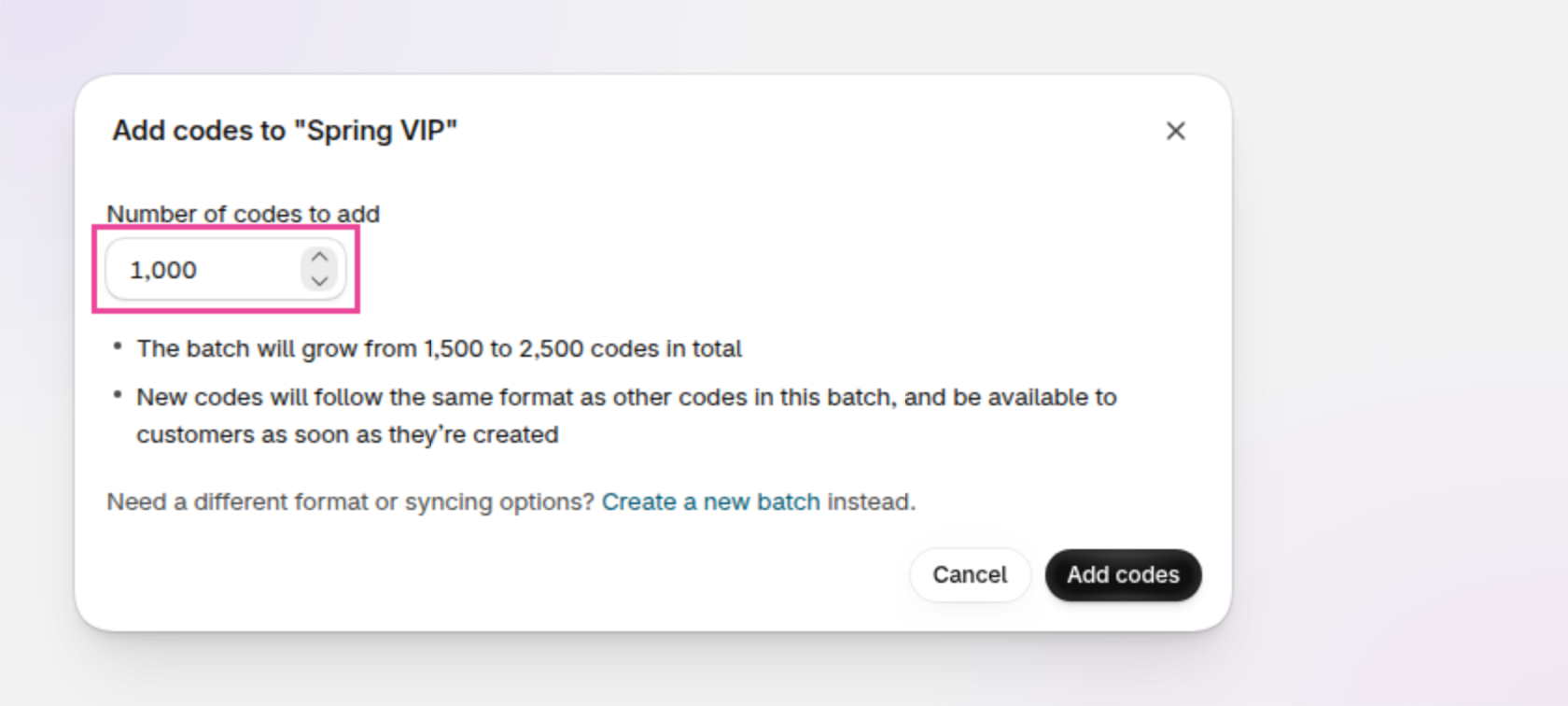
An example of the Add codes window for a generated batch, with Number of codes to add outlined.
Add only as many codes as you expect to need. Every code counts toward Shopify's limit of 20,000,000 unique discount codes per store.
How to add codes from the discount's page
Open the batch's menu
In the Discount code batches section, right-click the batch. Then click Generate codes.
The menu item is called Generate codes for every batch, including batches of pasted or uploaded codes. If it is grayed out, the reason is shown under it.
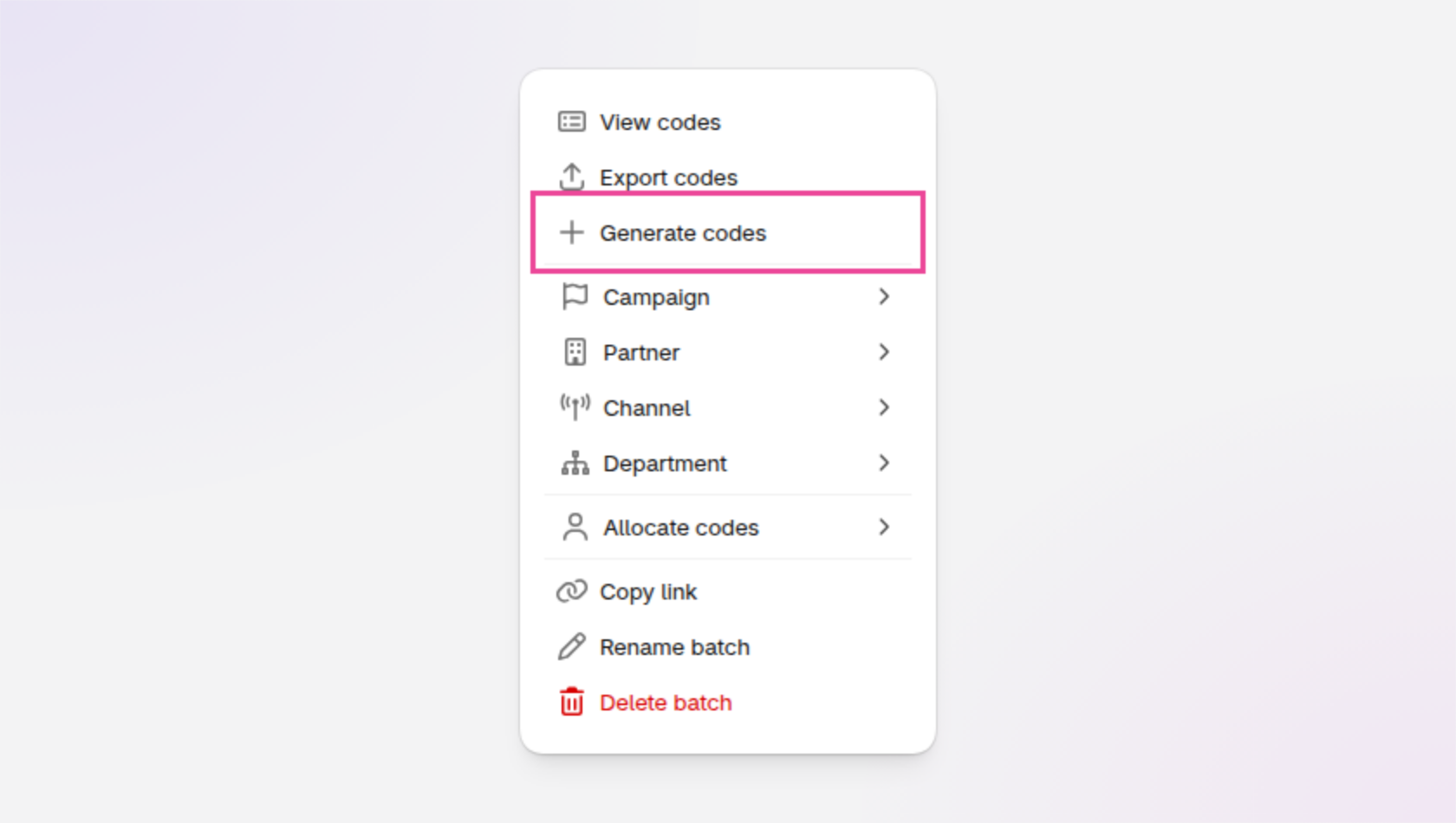
An example of a batch's right-click menu, with Generate codes outlined.
Add the codes
The same window opens as on the batch's page. Follow steps 3 and 4 above.
After you add codes to a batch
The batch shows its progress again: the batch goes through its in-progress statuses while Shopify creates the new codes, then shows as Active. 10,000 codes take about 4 minutes, and you can close the page meanwhile.
Codes customers already have keep working: adding codes doesn't change or replace the codes already in the batch.
Codes already in your store are skipped: if a pasted code already exists in your store, Discount Magic leaves it out and the message says how many, such as "Adding 500 codes (3 duplicates skipped)".
New codes sync to Klaviyo automatically (Pro plan): if the batch is synced to a Klaviyo coupon, the window says so, and the new codes are synced when they are ready.
The new codes use the discount's settings: they have the same offer and customer eligibility as the codes already in the batch.
Frequently asked questions
Can I add more discount codes to an existing discount in Shopify?
Yes. In Discount Magic, you can add codes to one of the discount's batches, or add a new batch to the discount. New codes use the same discount settings as the codes already on the discount.
How many codes can I add to a batch at once?
Up to 10,000 codes at a time. You can add codes again as often as you need, or add a new batch to the discount, where Discount Magic can generate up to 1,000,000 codes at a time.
Can I add codes in a different format to the same batch?
No. In Discount Magic, a generated batch always grows in its existing format. To use a different format, or to paste codes into a generated batch, add a new batch to the same discount.
Why can't I add codes to my batch?
The batch isn't Active or Partially active yet. Wait for it to finish generating, or retry it if it shows Failed or Stalled. A cancelled batch can't take new codes.
Will adding codes change the codes my customers already have?
No. Discount Magic only creates new codes. The codes already in the batch stay the same and keep working.
What happens if my code format runs out of possible codes?
Discount Magic doesn't add any codes and shows Not enough possible codes or This code format is nearly full. A batch keeps its format, so add fewer codes, or add a new batch with a longer format.
Related articles
Was this helpful?
Still need help? Ask the team